
From the notebook
Microsoft Entra Passkey Sign-In Compatibility: Browser, OS, and Cross-Device Matrix for Rollout Planning
A technical guide to Microsoft Entra passkey sign-in, including same-device and cross-device flows, compatibility dependencies, and rollout design.
Overview
A passkey rollout is not proven by successful registration. It is proven when real users, on real browsers and devices, can sign in under production conditions. That is why Microsoft's sign-in guidance and compatibility matrix matter so much. Registration proves a credential was issued. Sign-in proves the relying-party flow, the authenticator provider, the browser, the operating system, and the tenant policy all work together.
The main references for this topic are Sign in with a passkey (FIDO2) for your work or school account, Passkey (FIDO2) authentication matrix with Microsoft Entra ID, and Frequently asked questions about synced passkeys.
What sign-in looks like in the backend
Microsoft Entra acts as the relying party. At sign-in, it issues a challenge to the passkey path the user selects. The browser or operating system invokes the authenticator experience. The authenticator uses the private key to produce an assertion bound to that challenge and to the relying-party context. Microsoft Entra validates the returned assertion against the registered public-key metadata and the policy state of the account.
This means sign-in is not merely "touch the key" or "approve on your phone." The relying party has to recognize the credential. The browser and operating system have to support the ceremony. The authenticator provider has to complete the key operation successfully. The tenant policy must still allow the credential type being used. If any one of those layers breaks, the user sees one sign-in failure even though the root cause may live in a specific and narrow part of the stack.
Same-device sign-in
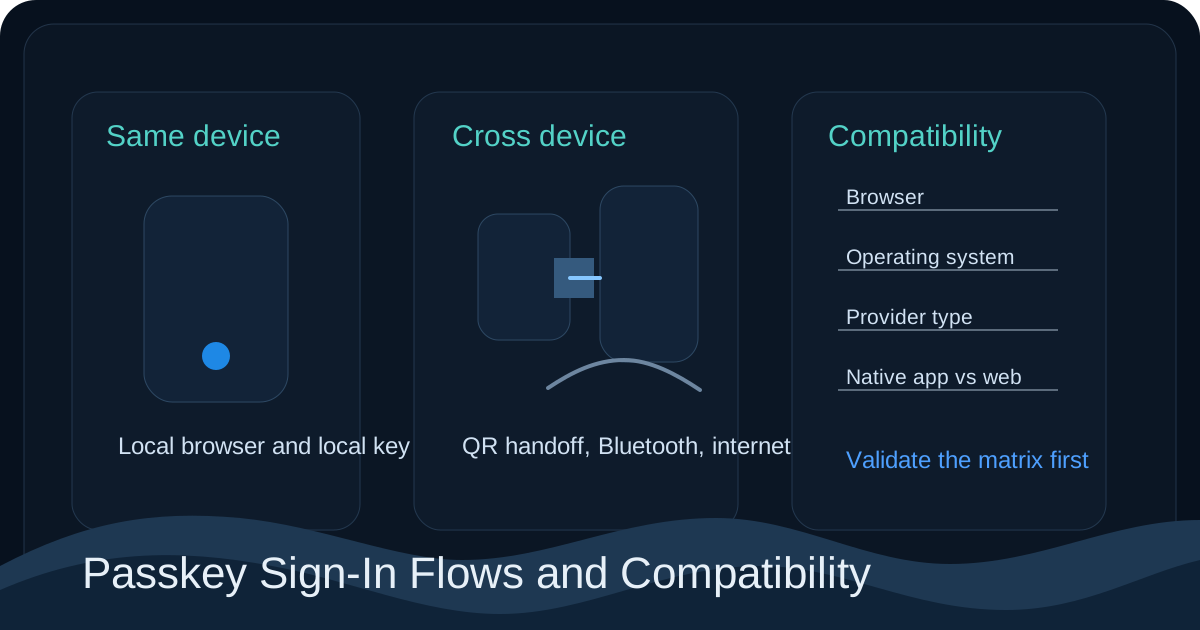
Microsoft documents the same-device flow in its sign-in guidance. In this scenario, the browser session and the authenticator are on the same device. That removes a number of coordination dependencies and usually makes this the cleanest rollout scenario.
There is no QR handoff. There is no device-to-device Bluetooth dependency. The platform can invoke the local passkey UX directly. For identity teams, this is the scenario that should be validated first because it gives the shortest path between a registered credential and a relying-party validation result.
If same-device sign-in fails in a supported combination, the problem is usually not a cross-device transport issue. It is more likely to be tenant policy, credential state, client support, or authenticator-provider behavior on the local device.
Cross-device sign-in
Cross-device sign-in is elegant when it works and more fragile than many pilots initially assume. Microsoft explicitly notes in its passkey sign-in article that this flow depends on a QR handoff, Bluetooth, and internet connectivity on both devices.
This matters because many organizations misclassify cross-device failures as generic passkey failures. In reality, the credential itself may be perfectly healthy. The actual issue may be Bluetooth disabled on one device, the handoff not completing, or the client pair not matching a supported matrix combination.
That is why cross-device sign-in should be treated as a distinct test scenario, not as proof that the whole passkey rollout is healthy. It has more moving parts and therefore a different failure model.
Why the compatibility matrix is a design input
The Microsoft compatibility matrix should be read before rollout, not after support calls start arriving. It is effectively a design document for what Microsoft expects to work across browser, operating system, passkey type, and application path combinations.
Identity engineers should use the matrix to answer operationally important questions. Which browsers in the estate are actually supported? Which mobile and desktop combinations work for the passkey types you intend to deploy? Are native and web app paths equally covered? Which scenarios should be documented as intentionally unsupported for phase one?
Without this analysis, teams tend to validate a single happy-path browser test and declare the rollout complete. Then users discover unsupported combinations in production, and the support team learns the real boundaries of the rollout from incidents rather than from design.
Device-bound and synced passkeys at sign-in time
Microsoft's synced passkey FAQ is helpful because it frames the choice operationally. Synced passkeys are often the right fit for standard workforce rollout because they reduce recovery friction and support more flexible user journeys. Device-bound passkeys are often the better fit for privileged identities because the authenticator boundary is narrower and easier to govern.
That difference becomes visible during sign-in. Synced passkeys depend more heavily on provider ecosystem behavior, supported client combinations, and multi-device coordination. Device-bound passkeys are usually simpler to reason about from a custody perspective, but less flexible when users change devices or need remote workflows.
Neither design is universally better. The right choice depends on the user population, the support model, the platform mix, and how much control the organization wants over the authenticator boundary.
Failure patterns administrators should expect
Microsoft's sign-in guidance highlights several real-world failure classes that should be included in support runbooks. Cross-device dependency failure is one of the clearest. Another is the orphaned passkey condition described in the Microsoft article, where the credential still exists on the user's device but is no longer registered in Microsoft Entra. In that situation, the local provider may still offer the passkey, but Entra rejects it because the relying party no longer recognizes the registration.
This is a strong example of why passkey troubleshooting has to be done from both ends. It is not enough to confirm that the user still sees the passkey in the device chooser. The relying party and the authenticator provider must still agree on the registration state. If that state is out of sync, sign-in fails even though the user believes the credential still exists.
A rollout model that holds up in production
The best rollout pattern is to treat passkey sign-in as a matrix of supported scenarios rather than as one broad feature. Start by validating same-device sign-in on the browsers and operating systems that matter most in your estate. Then validate cross-device sign-in separately because its dependencies are different. Use the Microsoft compatibility matrix to define what is supported in phase one and what is intentionally out of scope. Finally, align passkey type to population: synced passkeys where scale and usability matter most, device-bound authenticators where privileged-account governance matters more.
That approach mirrors how the platform actually behaves. It also gives the support desk better escalation paths and gives users clearer expectations about which sign-in journeys are meant to work.
Key implementation points
- Registration success does not prove that production sign-in is ready across the browser and device combinations your users actually use.
- Same-device and cross-device sign-in are different engineering scenarios and should be tested separately.
- The compatibility matrix should shape rollout scope before broad enforcement decisions are made.
- Orphaned credentials, unsupported client combinations, and cross-device handoff issues should all be expected and documented as first-class support cases.
Common questions
Why does cross-device sign-in fail with "Couldn't sign you in"?
Three common causes: (a) Bluetooth disabled on the phone holding the passkey, (b) the desktop browser doesn't have OS-level Bluetooth access, or (c) the phone's Microsoft Authenticator app is signed out of the work account. The passkey-not-showing-up post walks the layered diagnostic that covers most of these.
A native app (mobile or desktop SDK) rejects a passkey that works in the browser. What's the cause?
Most often, the app's MSAL or platform SDK version doesn't yet support the WebAuthn ceremony in the way the OS broker expects. Upgrade the SDK to the current GA version. Older MSAL.NET releases shipped before passkey CTAP2 support landed; the same is true for MSAL on Android and iOS — check the SDK release notes for the minimum version that announces passkey support.
The passkey shows in Security Info on Entra but the user can't sign in with it. Why?
The local credential (in Windows Hello, Authenticator, or the security key) may have been removed or corrupted while Entra still has the public-key registration. Have the user remove the orphaned method from Security Info and re-register, or unblock the path by deleting the cached client-side state (%LocalAppData%\Packages\Microsoft.AAD.BrokerPlugin_*\ on Windows) and rebooting.
Does sign-in compatibility differ between consumer and work passkeys?
Yes. Apple's iCloud Keychain–synced passkey and a Microsoft Authenticator–stored passkey for a work account are different credentials with different ceremonies. A user can have both and the picker on the device decides which is offered first. Train users to pick the Microsoft Authenticator entry from the platform's passkey-provider dialog.
Where do I see the SDK-level error when sign-in fails in a native app?
For MSAL clients, enable verbose logging and inspect the AcquireToken exception detail — the WAM or ExternalAuthorizationFailed codes name the underlying cause. For SDKs that don't expose this, capture a network trace and inspect the response from /oauth2/v2.0/token or /oauth2/v2.0/authorize for the error field. The token lifetimes and CAE post covers the related token-issuance flow that surfaces these errors.
References
- Sign in with a passkey (FIDO2) for your work or school account
- Passkey (FIDO2) authentication matrix with Microsoft Entra ID
- How to enable passkeys (FIDO2) in Microsoft Entra ID
- Frequently asked questions about synced passkeys
- Microsoft Entra ID attestation for passkey vendors
- John Savill video reference
About the author
MU.AMicrosoft 365 / Entra Engineer
MU.A is the editorial byline for Sentinel Identity, covering Microsoft Entra, Microsoft 365, and identity administration. Send corrections or questions through the contact page.
Feedback
Was this article helpful?
Anonymous — no account or comment required.
Related reading
Windows Hello Registration Blocked by Conditional Access
Fix Windows Hello registration blocked by Conditional Access: trace the policy, break bootstrap loops, validate TAP, and restore provisioning safely.
External IdP Passkeys for Microsoft 365: Admin Guide
Enable external IdP passkeys for Microsoft 365 apps safely: verify federation, brokers, browsers, platform scope, rollback, and sign-in evidence.
Microsoft Entra SMS and Voice Retirement: Admin Guide
Prepare for Microsoft Entra SMS and voice retirement on February 1, 2027: find affected users, deploy passkeys, preserve recovery, and avoid disruption.