
From the notebook
External IdP Passkeys for Microsoft 365: Admin Guide
Enable external IdP passkeys for Microsoft 365 apps safely: verify federation, brokers, browsers, platform scope, rollback, and sign-in evidence.
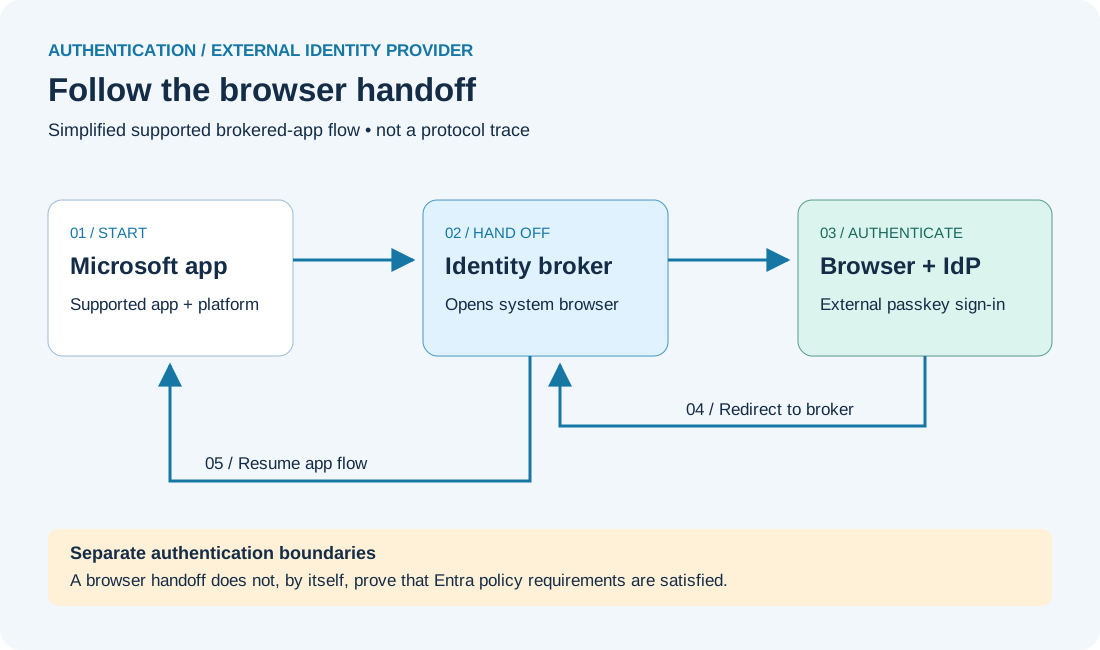
To enable external IdP passkeys for Microsoft 365, first confirm that the user's sign-in domain is federated to Microsoft Entra ID through SAML 2.0 or WS-Fed. Then enable the supported platform on that domain's internalDomainFederation object, verify the required system browser and Microsoft broker versions, and pilot a supported Microsoft app with a small federated-user ring. The external identity provider step should open in the system browser and return through the broker to the originating app.
That is the short answer. The control is off by default, public-cloud support is generally available, and national-cloud support remains preview. It does not import a third-party passkey into Microsoft Entra ID, make every native app compatible, or prove that the external IdP's authentication satisfies a Microsoft Entra Conditional Access authentication strength.
Grab a coffee before the pilot. This looks like a browser preference, but it changes the runtime path between Microsoft 365, the Microsoft identity broker, the system browser, and a separate authentication authority. A clean deployment has to validate all four boundaries.
External IdP passkeys for Microsoft 365: what changed
Microsoft announced general availability on September 29, 2026 for supported brokered Microsoft app sign-ins on Android, iOS, Android Shared Device Mode, and managed macOS. Microsoft's general-availability announcement names Outlook, Teams, OneDrive, Word, Excel, PowerPoint, and Microsoft To Do as supported apps.
Before this capability, the external identity provider step could run in an embedded WebView. That surface cannot satisfy every WebAuthn or passkey flow, and some identity providers deliberately reject embedded user agents. The new path moves only the external IdP authentication step into the supported system browser:
Figure 1 — Original conceptual diagram based on Microsoft’s browser-authentication documentation. It shows the handoff, not a captured sign-in or every federation exchange. Open full-size diagram.
The passkey remains registered with and evaluated by the external IdP. Microsoft explicitly warns that the broker is not directly gaining support for the third-party FIDO credential. The browser simply supplies the WebAuthn-capable surface, existing IdP session, and return path that the embedded WebView could not.
This is distinct from registering a passkey in Microsoft Entra ID. If the ticket concerns an Entra-native credential, start with the site's Microsoft Entra passkey troubleshooting guide. If the problem is federation routing or token-protocol design, use the federation and token protocol guide before changing this browser handoff.
Keep the release and support boundaries explicit
Microsoft's current feature documentation draws these boundaries:
- General availability: Microsoft Entra public cloud, for the listed brokered scenarios and supported apps.
- Preview: national clouds while Microsoft resolves known issues.
- Default state: off until an administrator enables one or more platforms on the federated domain configuration.
- Federation protocols: SAML 2.0 and WS-Fed.
- Unsupported identity-provider path: OAuth 2.0 or OpenID Connect social IdPs.
- Unsupported platforms: Linux and unmanaged macOS.
- Windows: already supports third-party FIDO through its native experience and does not use this browser-handoff feature.
- Android Company Portal: direct sign-in to Company Portal continues to use an embedded WebView, even though Company Portal can broker other supported Android app scenarios.
Do not turn “other brokered apps might work” into a production support claim. Microsoft says those apps remain preview until they appear in the supported list. Test them only under your preview-risk policy and keep them outside the GA success criteria.
No public rollout ring, mandatory-enforcement date, or Message Center identifier is assumed here. The announcement and feature page describe an administrator-enabled capability, not a default-on migration. Confirm the live documentation and tenant-specific communications before the change window.
Understand which control plane owns each decision
Four components participate, and each can produce a different failure.
Microsoft Entra federation configuration identifies the external IdP for the federated domain and stores the platform selection in systemBrowserEnabledOn. The change is applied to the domain's internalDomainFederation object, not to an individual user, group, app, or passkey.
The Microsoft identity broker coordinates the app sign-in and token acquisition. Depending on the platform and scenario, that can involve Microsoft Authenticator, Intune Company Portal, Link to Windows, or another supported broker component. The broker hands the external authentication step to the browser and later resumes the app flow.
The system browser supplies WebAuthn support and an eligible external-IdP session. Android requires Chrome as the default browser. iOS and managed macOS use Safari for the documented GA flow.
The external IdP performs the passkey or security-key authentication and returns the federated response. It remains a separate authentication, logging, session, and incident-response boundary.
That separation matters for Conditional Access. Changing the external IdP step to a system browser does not, by itself, tell Microsoft Entra to accept an external MFA claim. The federatedIdpMfaBehavior setting controls whether Entra accepts, requires, or rejects MFA performed by the federated IdP. Microsoft's federation resource reference documents those behaviors. Microsoft's authentication-strength guidance for federated users separately explains which federated combinations can satisfy an authentication-strength requirement.
Verify every prerequisite before enabling a platform
Build a device-and-app matrix from current inventory, not from the announcement headline.
Android
Microsoft currently requires Chrome as the default browser. The feature page lists Microsoft Authenticator 6.2510.6857 or later, Link to Windows 1.25102.138.0 or later, Company Portal 5.0.6768.0 or later when applicable, and broker library 14.0.2 or later. Broker applicability depends on the initiating app scenario.
For Android Shared Device Mode, use Chrome and a supported broker that meets the applicable minimum. Add account transition, sign-out, and browser-session separation to the pilot; a successful first-user sign-in does not prove safe handoff to the next user.
iOS
The functional minimum is Safari with Microsoft Authenticator 6.8.29 or later. Microsoft recommends 6.8.37 or later for current known fixes. Standardize on the recommended fixed version unless a controlled compatibility test requires the lower minimum.
Managed macOS
The device must be managed and use Safari with Company Portal 5.2511 or later. Unmanaged macOS is unsupported. Do not infer that installing Company Portal on an unmanaged Mac creates the supported state; the management boundary is an explicit prerequisite.
Federation and app scope
For every pilot persona, record:
- federated sign-in domain and federation configuration ID;
- SAML 2.0 or WS-Fed protocol;
- external IdP owner and support contact;
- platform, OS build, system browser, and default-browser state;
- installed broker and version;
- initiating Microsoft app and version;
- applicable Conditional Access policies and authentication strength;
- current
federatedIdpMfaBehavior; and - whether the scenario is GA, preview, or unsupported.
The feature page does not state a feature-specific license. That is not a promise that surrounding capabilities are free. Intune management, Conditional Access, log retention, and the external IdP can have separate licensing or commercial requirements. Validate each control against the tenant's agreement.
Read the current federation state before the write
Start with a read-only request for the target domain:
GET /domains/{federated-domain-name}/federationConfigurationMicrosoft says this collection currently returns one configuration object. Preserve its id, displayName, issuerUri, passiveSignInUri, preferredAuthenticationProtocol, certificate metadata, federatedIdpMfaBehavior, and current systemBrowserEnabledOn value through the organization's approved configuration-record process.
Do not use the domain name as the configuration ID. The enable request targets the id returned by the list operation:
PATCH /domains/{federated-domain-name}/federationConfiguration/{configuration-id}
Content-Type: application/json

{
  "systemBrowserEnabledOn": "Ios"
}
The documented values are Ios, Android, and Macos. Microsoft says the property accepts a space-separated or comma-separated platform list. Enable one platform in the first ring instead of changing all three at once.
There is a documentation wrinkle worth putting in the change record. The feature-specific page currently says a Global Administrator issues the request and shows shortened permission wording, while the generic update internalDomainFederation method documents Domain-InternalFederation.ReadWrite.All as least privileged and lists several supported administrator roles. The generic resource schema can also lag the new property's feature page.
Treat the feature-specific page as the source for systemBrowserEnabledOn, use Domain-InternalFederation.ReadWrite.All rather than a similarly named invented permission, and validate authorization with a time-bound test account before the production window. Until Microsoft reconciles the role wording, do not assume a generic supported role can change this specific new property merely because it can update older federation fields. Never widen to a permanent Global Administrator assignment just to make the request succeed.
After the PATCH, read the same configuration back. A successful HTTP response without the expected property value is not a completed change.
Pilot the system-browser handoff in controlled rings
Ring 0: agree on evidence and stop conditions
Coordinate the Microsoft Entra, endpoint, Microsoft 365 app, and external-IdP owners. Define the exact pilot accounts, devices, apps, test times, and rollback operator. Freeze unrelated federation changes during the window.
Microsoft's feature page tells administrators not to capture, upload, attach, retain, or share authentication or diagnostic evidence from this validation flow. Do not screen-record the browser handoff, copy redirect URLs, or paste tokens, proof artifacts, cookies, broker state, tenant identifiers, or user identifiers into tickets. If regulated operations require troubleshooting data, use the approved privacy and retention process and minimize it.
Ring 1: prove one platform and one supported app
Choose a non-administrator federated account with a known-good external-IdP passkey. Confirm the target app already signs in through the old path so the pilot does not mix an existing federation outage with the browser change.
Enable one platform. Start a fresh interactive sign-in from one supported app. Observe only the required behavioral checkpoints:
- the Microsoft broker participates;
- the external IdP step opens in the required system browser;
- the external passkey or security key completes at the IdP;
- a trusted link returns control to the broker; and
- the originating Microsoft app finishes sign-in.
Repeat with an account that does not have an eligible browser session. The pilot must prove both passkey invocation and a clean new-session path, not only silent SSO through a pre-existing cookie.
Ring 2: expand across supported apps and policy personas
Test Outlook, Teams, OneDrive, one Office app, and To Do where they are operationally relevant. Include personas with different Conditional Access outcomes, managed-device requirements, and federated MFA behaviors. Keep unsupported apps outside the acceptance gate.
On Android, test the configured default browser and the applicable broker. On iOS, use the recommended Authenticator build with current fixes. On macOS, prove that the device is managed and Company Portal meets the documented version.
Ring 3: expand one platform at a time
Add the next platform value only after the first ring is stable. Read back the entire property after each write so a replacement update does not accidentally remove an already approved platform.
Monitor the change without confusing browser evidence with identity evidence
Microsoft Entra interactive sign-in logs include federated sign-ins. Use the sign-in activity details reference to review who signed in, the initiating application, target resource, client, device, authentication sequence, Conditional Access result, failure reason, request ID, and correlation ID.
The sign-in log can prove that Microsoft Entra processed an interactive federated sign-in and show its policy outcome. It does not prove where the external IdP stores a passkey or how that IdP evaluated the credential. Use the IdP's approved monitoring surface for that half of the transaction.
Monitor the control plane too. Microsoft describes Entra audit logs as the record of directory changes, including application and policy changes. Confirm the federation update is attributable to the approved operator and change window. Do not assume the audit event alone proves the app journey; pair control-plane confirmation with the ring's pass/fail outcome.
For population monitoring, compare failure rate by platform, app, broker version, and Conditional Access result before and after each ring. Avoid storing full redirect URLs or authentication payloads in dashboards.
Troubleshoot external IdP passkeys by the failed boundary
The app still uses an embedded WebView
Confirm that the domain uses SAML 2.0 or WS-Fed, the correct federation configuration ID was updated, the platform value is present after read-back, and the initiating app is brokered and supported. Check the browser and broker minimums. Remember that direct Android Company Portal sign-in is documented to remain embedded.
Android does not open Chrome
Confirm Chrome is installed and configured as the default browser. Then verify the applicable broker and component versions. Do not change federation or IdP policy to repair a device whose browser prerequisite is missing.
The browser opens, but control never returns to the app
This is the browser-to-broker return boundary. Confirm the app and broker use their registered trusted-link or deep-link return path and meet the documented versions. Do not paste the return URL into a ticket; it can contain sensitive state.
iOS never offers the expected journey
Confirm Safari, Microsoft Authenticator 6.8.29 or later, and the correct platform configuration. Move to 6.8.37 or later before investigating behavior Microsoft already associates with current known fixes.
macOS remains unsupported
Confirm the Mac is managed, Safari is used, and Company Portal is 5.2511 or later. An unmanaged Mac is outside the supported feature boundary even if the same external passkey works in a normal browser sign-in.
The passkey succeeds, but Conditional Access blocks access
Read the Microsoft Entra sign-in's Authentication details and Conditional Access tabs. Check federatedIdpMfaBehavior and the required authentication strength. Do not weaken Conditional Access merely because the external IdP labeled its method phishing resistant; Entra evaluates the federated claim and its own policy semantics.
The site's Conditional Access sign-in log guide covers that evidence path in detail.
Only one Microsoft app fails
Verify that the app is on the GA supported list, uses the expected broker, and meets its current version requirement. A working Teams test does not certify every brokered app, and an unlisted app that happens to work remains preview.
Roll back at the platform property
For a platform-specific failure, restore the exact previously recorded systemBrowserEnabledOn value. If no platform should remain enabled, Microsoft documents none as the off value:
PATCH /domains/{federated-domain-name}/federationConfiguration/{configuration-id}
Content-Type: application/json

{
  "systemBrowserEnabledOn": "none"
}
Read the configuration back, then retest the original embedded journey for the affected app and platform. Do not delete or recreate the federation object, rotate its signing certificate, or change its issuer to undo a browser handoff. Those actions alter the trust itself and create a much larger outage domain.
Disabling the handoff does not remove external-IdP passkeys, invalidate existing IdP browser sessions, or repair an independent Conditional Access problem. Roll back the control that changed, preserve the remaining boundaries, and escalate with the minimum approved identifiers when observed behavior conflicts with the current support matrix.
External IdP passkeys administrator checklist
- Confirm the domain uses SAML 2.0 or WS-Fed federation.
- Classify every platform and app as GA, preview, or unsupported.
- Record the federation configuration ID and current property value.
- Verify the required browser, default-browser state, broker, and component versions.
- Review
federatedIdpMfaBehaviorand applicable Conditional Access authentication strengths. - Use time-bound privilege and the documented federation permission.
- Enable one platform for a tiny non-admin pilot.
- Read
systemBrowserEnabledOnback after every write. - Test browser launch, external authentication, broker return, app completion, and a fresh session.
- Review Entra sign-in, Conditional Access, audit, and external-IdP evidence at their own boundaries.
- Keep secrets, redirect state, tokens, cookies, and proof artifacts out of tickets and telemetry.
- Preserve the prior value and a tested
nonerollback.
Frequently asked questions
Are third-party passkeys now stored in Microsoft Entra ID?
No. Microsoft says the external IdP step moves to the system browser. The third-party passkey remains an external-IdP credential; the Microsoft broker coordinates the app flow but does not directly gain that credential.
Is the feature on automatically?
No. Microsoft documents it as off by default. An administrator enables supported platforms through systemBrowserEnabledOn on the federated domain configuration.
Does it support OIDC federation?
Not in the documented GA scope. The feature supports workforce domains federated through SAML 2.0 or WS-Fed. OAuth 2.0/OIDC social IdPs are listed as unsupported.
Can an external passkey satisfy phishing-resistant Conditional Access?
Do not assume it. The browser handoff, the federated IdP's authentication method, the MFA claim behavior, and the Microsoft Entra authentication-strength evaluation are separate decisions. Validate the actual Conditional Access result for each pilot persona.
Why does the passkey work in Safari or Chrome but not in Outlook or Teams?
A direct browser sign-in does not test the broker handoff. Verify that the platform is enabled, the app is supported and brokered, the system browser is the documented one, the broker meets its minimum version, and the return link completes.
Microsoft sources
- Sign in to Microsoft apps with passkeys from external identity providers
- Passkey and security key browser authentication for third-party federated identity providers
- Update an internalDomainFederation object
- internalDomainFederation resource type
- Authentication strengths for federated users
- Microsoft Entra sign-in activity details
- Microsoft Entra audit logs
About the author
MU.AMicrosoft 365 / Entra Engineer
MU.A is the editorial byline for Sentinel Identity, covering Microsoft Entra, Microsoft 365, and identity administration. Send corrections or questions through the contact page.
Feedback
Was this article helpful?
Anonymous — no account or comment required.
Related reading
Choosing a FIDO2 Security Key for a Microsoft Entra Passkey Rollout: A Practical Comparison for Admins
You've decided to roll out phishing-resistant authentication on Microsoft Entra. Now you need to pick a security key that will actually work end-to-end for your users, survive an enterprise deployment, and not bankrupt the security budget. Here's what to look for, what to avoid, and how five popular keys compare in practice.
Core Authentication Methods in Microsoft Identity: Kerberos, NTLM, LDAP, Passkeys, Certificates, and Windows Hello
A technical guide to Kerberos, NTLM, LDAP bind, passkeys, certificate-based authentication, and Windows Hello for Business, focused on what each method proves and how the backend validates it.
Microsoft Authentication Protocols and Sign-In Models: From Kerberos to OpenID Connect on Microsoft Entra
A technical guide to the major authentication protocols and sign-in models used in Microsoft environments, including Kerberos, NTLM, LDAP bind, SAML, WS-Federation, OAuth 2.0, OpenID Connect, passkeys, certificate-based authentication, AD FS, and Microsoft Entra sign-in models.