
From the notebook
What is DNS? A Beginner's Guide to the Internet's Phone Book
Understand DNS records, resolvers, caching, and the checks that help distinguish a name-resolution failure from an application or Active Directory problem.
By the end of this post you'll actually understand how it works. Let's do this.
The problem DNS solves
Computers don't know what "google.com" means. They only understand numbers — specifically, IP addresses like 142.250.190.14.
But humans are terrible at remembering IP addresses. Nobody wants to type 142.250.190.14 to visit Google, 40.113.200.201 for Microsoft, and thousands of other numbers for every website they use.
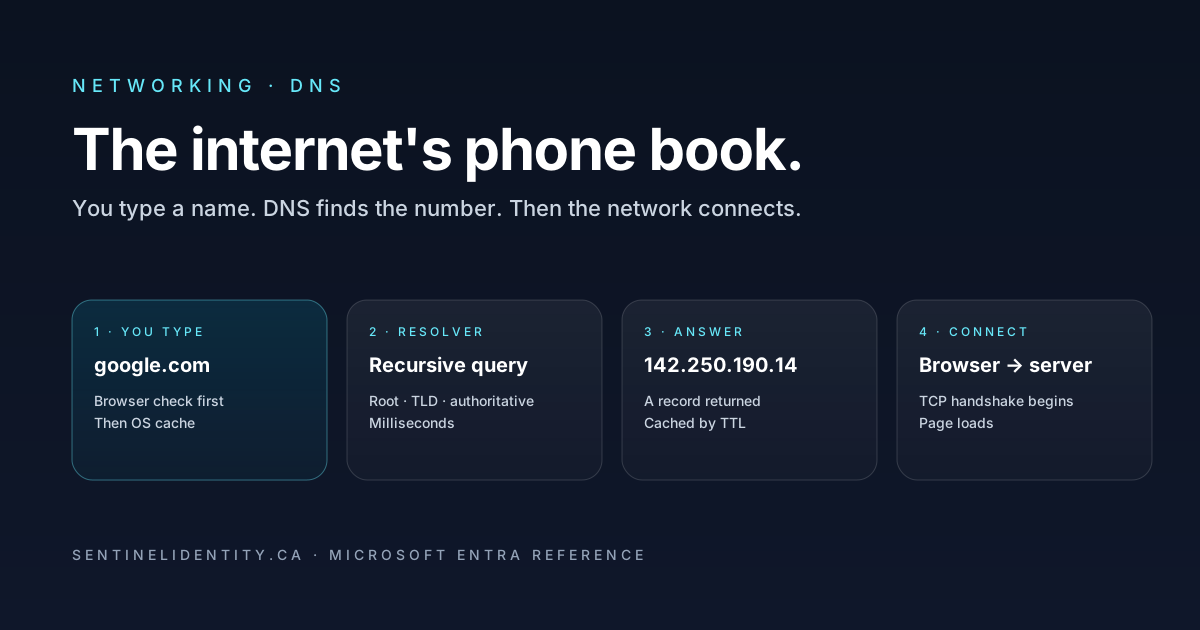
DNS is the translator. You type a name your brain remembers, DNS turns it into the IP address the network needs.
That's the whole idea. Everything else is details about how.
The phone book analogy (that's actually accurate)
Imagine the pre-internet 1990s. You want to call a pizza place. You don't have their number memorized. So you open the phone book, look up "Pizza Palace," find their number, and dial it.
DNS is exactly that, but for computers.
- You type
pizzapalace.comin your browser - Your computer opens the "phone book" (DNS)
- It looks up
pizzapalace.com - It gets back an IP address like
203.0.113.42 - It connects to that IP
Except unlike a physical phone book that lived in one location, DNS is a massive, distributed, hierarchical system running on thousands of servers around the world. And it has to handle billions of lookups per second without falling over.
Vocabulary you need first
Six terms. Learn these and everything else clicks.
Hostname / domain name. The human-readable name — google.com, sentinelidentity.ca, login.microsoftonline.com. What you type.
IP address. The number the network actually uses. IPv4 looks like 142.250.190.14. IPv6 looks like 2607:f8b0:4004:c1b::8a.
Resolver. The thing that does the lookup for you. When you type a URL, your operating system asks a resolver — usually your router at home, or your company's DNS server at work — to find the IP.
Authoritative server. The server that officially knows the answer for a specific domain. sentinelidentity.ca's authoritative servers are wherever the site's owner registered them (usually the hosting provider). An authoritative response describes that server's zone data; the data can still be misconfigured.
DNS record. The entry in the phone book. Different types of records store different information. The most common:
- A record — maps a hostname to an IPv4 address (
google.com→142.250.190.14) - AAAA record — same but for IPv6
- CNAME — an alias pointing to another hostname (
www.example.com→example.com) - MX record — mail server for a domain (used by email delivery)
- TXT record — arbitrary text (used for SPF/DKIM email auth, site verification, and more)
TTL (Time To Live). How long a resolver is allowed to cache the answer before it must ask again. TTLs range from seconds to days.
What actually happens when you type a URL
Let me walk through the full journey when you type sentinelidentity.ca in your browser. This is the moment where DNS actually clicks.
- Browser cache check. Your browser looks in its own cache. Did we look this up recently? If yes, use it. Done.
- OS cache check. If not, Windows/macOS/Linux checks its own OS-level DNS cache. Same question.
- Resolver query. If neither cache has it, your computer asks its configured resolver. At home, that's usually your ISP's DNS server or Google's
8.8.8.8or Cloudflare's1.1.1.1. At work, it's usually your company's Domain Controllers (which run DNS). - Recursive lookup. The resolver does the actual hunting on your behalf. It goes:
- Ask a root server: "who's authoritative for
.ca?" Root server responds with the nameservers for Canadian domains. - Ask the
.caserver: "who's authoritative forsentinelidentity.ca?".caserver responds with the specific nameservers. - Ask the authoritative server: "what's the A record for
sentinelidentity.ca?" Authoritative server returns the IP address.
- Ask a root server: "who's authoritative for
- Response cached. The resolver caches the answer (respecting the TTL) and returns it to your computer.
- Your computer caches it too. Faster next time.
- Browser connects to the IP. Now it can actually load the page.
Resolution time varies with caching, network conditions, and the servers involved. Usually. When it's slow or broken, everything on your network feels slow or broken — because everything on your network depends on DNS.
Why DNS matters so much in Active Directory
Here's the thing that trips people up: Active Directory requires DNS to function. Not "AD works better with DNS" — AD literally cannot work without DNS. Every domain-joined computer uses DNS to find its Domain Controller. Every Kerberos ticket lookup uses DNS. Every Group Policy download uses DNS.
That's why:
- The first Domain Controller you install typically becomes a DNS server too. Most AD deployments run DNS on the DCs themselves.
- Clients in an AD environment must have their DNS pointed at the DC (or another DNS server that can resolve the AD zone). If a computer's DNS points at
8.8.8.8instead of the DC, that computer can't find its domain and everything breaks. - DNS problems look like AD problems. When a user says "I can't access the file share" or "my computer says it can't reach the domain," DNS resolution is one dependency to verify; the symptom alone does not establish the cause.
If you take one thing away from this post: when Windows says "cannot find domain," check DNS first.
What breaks in real deployments
Six DNS problems that cause the vast majority of tickets:
"My computer says it can't reach the domain." DNS server misconfigured on the client. Check ipconfig /all — the DNS server should be your DC, not your ISP.
"I can ping the DC by IP but not by name." Client is using the wrong DNS server, or DNS isn't answering. Try nslookup contoso.com — if it fails, that's your problem.
"External websites are slow but internal resolution works." Compare queries to the configured resolver and inspect its forwarding or recursive-resolution path. Windows DNS can use root hints when appropriate; a missing forwarder alone does not prove the cause. Follow your organisation's DNS design before changing resolvers.
"I updated a DNS record but nothing sees the change." Caching. Wait for the TTL to expire (or flush client caches with ipconfig /flushdns). Resolvers may still hold an earlier answer until its remaining cache lifetime expires. Record which resolver you queried; a cache flush on one client does not clear other caches.
"Group Policy isn't applying to some computers." Check DNS resolution alongside policy scope, permissions, and connectivity. Domain-joined computers need to resolve _ldap._tcp.dc._msdcs.contoso.com to find a DC that serves policies. Broken DNS breaks GPO application.
"Email isn't being delivered from our company." Your MX or SPF records are wrong. Every email server that receives mail checks these records to decide whether to accept mail from your domain.
Try it in your lab
If you have the home lab from the earlier post, try these:
- On CLIENT01, run
nslookup dc01.lab.local— should return the DC's IP address. - Change CLIENT01's DNS server to
8.8.8.8(Google DNS). Then try to open a file share on\\fs01. It won't work. Because Google's DNS doesn't know your internal names. - Point DNS back at the DC. Everything works again.
- On the DC, open DNS Manager. Look at the
lab.localforward zone — you should see A records for every joined computer. - Delete one of those records. Watch what happens the next time that computer tries to authenticate.
Doing these once cements how DNS underpins AD.
The FAQ
What's the difference between a public DNS server (like 8.8.8.8) and my company's DNS server? Both do DNS. The difference is what they know. Google's DNS knows about internet domains (google.com, github.com, etc.). Your company's DNS knows about your internal domain (contoso.local, and every domain-joined computer's hostname). If you want both, your company's DNS server "forwards" requests it can't answer to a public DNS.
Why is DNS so critical for AD but not (as much) for random web servers? Because AD uses DNS to discover services (DCs, Kerberos, LDAP, Global Catalog) via SRV records. Web servers just have an A record. AD is a much heavier user of DNS than a website is.
Can I run AD without DNS on the DC itself? Technically yes — you can have DNS on a separate server. In practice, everyone runs DNS on the DCs because it simplifies replication and reduces failure points.
What's a "conditional forwarder"? A rule that says "for this specific domain, ask this specific DNS server." Useful when you have multiple AD forests that need to resolve each other's names.
How is DNS different in Entra ID (cloud)?
Entra ID doesn't use DNS the same way on-prem AD does. Users authenticate to Entra ID via HTTPS to login.microsoftonline.com, which resolves through public DNS like any website. Internal cloud-only orgs don't need to run their own DNS.
How do I know if DNS is my problem?
nslookup your domain name. If it fails or returns wrong answers, DNS is your problem. If it works, look elsewhere.
Where to go next
If DNS makes sense, the natural next posts:
- What is DHCP? — the other half of "how devices get on the network." DHCP hands out IP addresses; DNS translates names to IPs. They work together.
- Windows DNS forward lookup zones — deeper dive on how to set up and manage DNS zones on Windows Server.
- Windows DNS server configuration — full config walkthrough.
Studying for a cert? DNS is a huge topic in AZ-800 and MS-102. Building a small lab and breaking DNS on purpose is the best way to prep.
Primary references
About the author
MU.AMicrosoft 365 / Entra Engineer
MU.A is the editorial byline for Sentinel Identity, covering Microsoft Entra, Microsoft 365, and identity administration. Send corrections or questions through the contact page.
Feedback
Was this article helpful?
Anonymous — no account or comment required.
Related reading
Microsoft Entra Domain Services SAM Account Name Sync
Pilot Microsoft Entra Domain Services SAM account name sync safely: verify Active Directory source names, test legacy authentication, and monitor convergence.
Microsoft Entra AD Group Enforcement: Safe Pilot Guide
Pilot Microsoft Entra AD group enforcement safely: prepare every writable domain controller, audit blocked writes, test Cloud Sync, and plan rollback.
25 Active Directory Interview Questions and Answers
Twenty-five practical Active Directory interview questions with clear, technically accurate answers covering AD DS, DNS, Kerberos, replication, Group Policy, recovery, and security.