
From the notebook
Microsoft Entra Primary Refresh Token (PRT) Failures on Windows: Reading dsregcmd Output and Fixing the Common Causes
A detailed technical guide to Microsoft Entra Primary Refresh Token failures on Windows, including dsregcmd analysis, device trust, broker behavior, network dependencies, and remediation design.
Overview
When Windows users report that Outlook, Teams, Edge, or Microsoft 365 stopped signing in silently, the visible symptom is usually only the last stage of a deeper device sign-in problem. In many of these cases, the actual break is that Windows no longer has a healthy Primary Refresh Token (PRT) and silent token acquisition starts to collapse across the brokered Microsoft authentication stack.
Microsoft's core references for this topic are Troubleshoot primary refresh token issues on Windows devices, Understand how a Primary Refresh Token works, Troubleshoot devices by using the dsregcmd command, and Troubleshooting Windows devices in Microsoft Entra ID.
The reason PRT issues are often misdiagnosed is that administrators see the failure first in an application, while the actual problem lives below the application layer. A broken PRT is not primarily an Outlook problem, a Teams problem, or a browser problem. It is a Windows device and broker trust problem that prevents downstream token refresh from happening correctly.
What a PRT actually does
As explained in Understand how a Primary Refresh Token works, a PRT is a device-bound token issued to Microsoft authentication brokers after a user signs in on a device that is registered or joined in a supported way. The broker then uses that device-bound context to request downstream tokens for Microsoft Entra protected resources without prompting the user every time.
That architecture matters because the PRT is not simply "another refresh token in a cache." It is the mechanism that lets Windows prove both user presence and device trust context to the Microsoft identity platform. In practice, the broker combines the PRT with device material and local session state to obtain tokens for browser SSO, Office clients, Teams, and other Microsoft-integrated workloads.
This is why Microsoft consistently positions PRT troubleshooting around device SSO rather than around individual applications. Once the PRT path is unhealthy, multiple applications start failing in different ways:
- browser-based SSO becomes inconsistent
- Office clients prompt for credentials more often
- token refresh fails in the background
- Conditional Access decisions that depend on device identity become less reliable
The applications are only exposing the failure. They are not usually causing it.
The backend stages of PRT issuance and refresh
A PRT problem is easier to troubleshoot when you think about the sign-in pipeline as a sequence instead of as a single event.
The first stage is device identity. Windows has to be in a valid Microsoft Entra registration or join state, and the corresponding device object has to be usable for authentication. If the device identity is broken, disabled, stale, or otherwise unusable, the platform can authenticate the user locally but still fail device-bound cloud SSO.
The second stage is broker-driven user authentication. The brokered sign-in must reach Microsoft Entra and successfully complete the user's sign-in transaction. If the user cannot satisfy the server-side request, the PRT cannot be issued or refreshed.
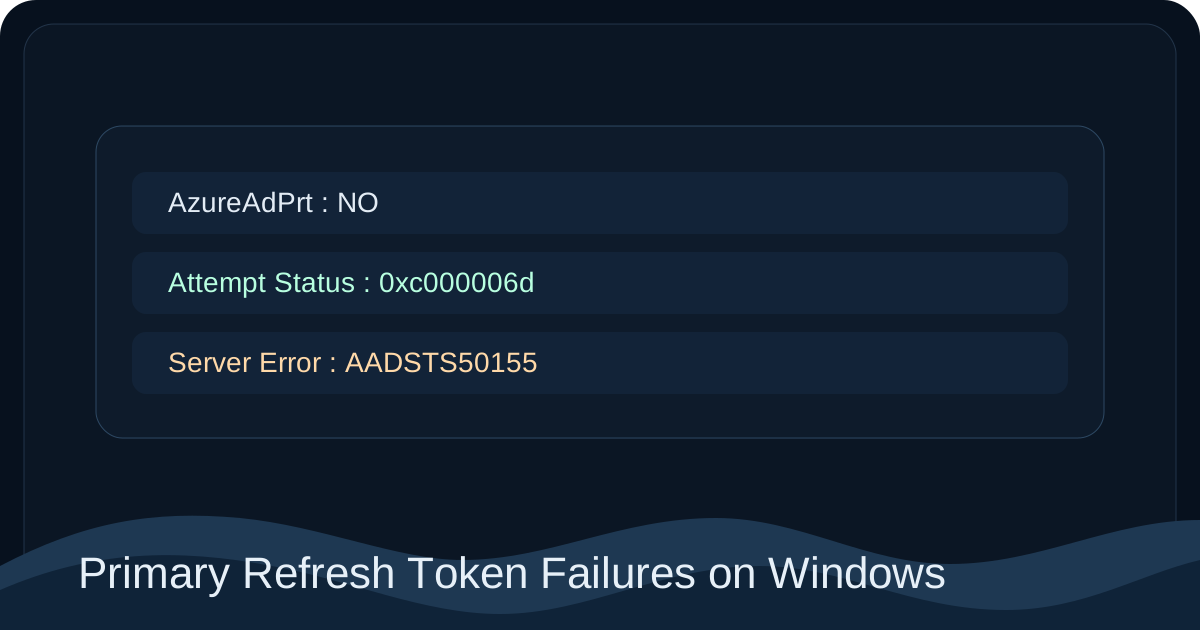
The third stage is device authentication and token issuance. The service has to evaluate both the user and the device context before returning a healthy PRT. Microsoft documents in the PRT troubleshooting article that server-side error values such as AADSTS50155 indicate device authentication failure, which is fundamentally different from a bad-password or interactive sign-in failure.
The fourth stage is background renewal and downstream token acquisition. Even if the initial sign-in worked, Windows still has to refresh token state later. That is why PRT problems often surface hours after a seemingly successful login. The original login may have succeeded, but the subsequent refresh path failed.
Why dsregcmd /status is the primary diagnostic tool
Microsoft's official troubleshooting flow starts with dsregcmd /status, and that is the correct engineering starting point because it exposes the device and SSO state that the UI never shows clearly.
Run the following command in an elevated command prompt:
dsregcmd /statusThen focus on the SSO State section. Microsoft specifically calls out fields such as AzureAdPrt, Previous Prt Attempt, Attempt Status, Server Error Code, Server Error Description, and Credential Type in Troubleshoot primary refresh token issues on Windows devices.
Those fields matter because they tell you where the break happened:
- if
AzureAdPrtisYES, the PRT exists and the current issue is likely downstream - if
AzureAdPrtisNOand the attempt fields are populated, Windows tried and failed to get or renew the token - if the server-side fields show an Entra error, the request reached the service and failed there
- if WinHTTP or transport errors appear, the problem is more likely network or proxy related than policy related
That is a much stronger starting point than "Teams prompted the user again."
Failure class 1: the device is no longer trusted enough to get a PRT
One of the most important distinctions Microsoft makes in the official guidance is that PRT issuance depends on device trust as well as user authentication. When the service returns device-related failures such as AADSTS50155, Windows reached Microsoft Entra, but Microsoft Entra could not authenticate the device successfully.
This class of failure usually points to one of the following conditions:
- the Entra device object was deleted or disabled
- the local device registration state no longer matches the tenant object
- the device is in a partial or unhealthy registration state
- the device certificate or registration material needed for device authentication is no longer valid
The reason this breaks silent SSO is straightforward. A PRT is device-bound. If the service cannot validate the device portion of the request, it will not issue a usable PRT even when the user portion of the sign-in seems fine.
That is why PRT failures frequently need to be investigated together with Troubleshooting Windows devices in Microsoft Entra ID. The identity platform is evaluating a user-plus-device tuple, not only a user.
Failure class 2: user authentication succeeded locally but the cloud issuance step failed
The PRT troubleshooting article documents server-side errors such as invalid_grant and AADSTS50126. These are useful because they tell you that the request reached Microsoft Entra and the broker attempted real token issuance, but the issuance step was rejected.
In this class of issue, the root cause is not usually "the app lost its session." The actual problem is in the cloud-side authentication transaction. Examples include:
- the user's credential challenge failed
- the sign-in method did not satisfy the server-side requirements
- account state or policy evaluation blocked issuance
The operational lesson is that you should not stop at the application symptom. Once dsregcmd shows a server-side attempt and a Microsoft Entra error, the investigation needs to pivot into sign-in logs, account state, and any Conditional Access or authentication-policy logic that applied to the underlying sign-in.
Failure class 3: the network path is blocking background token renewal
Microsoft's troubleshooting guidance repeatedly points administrators toward WinHTTP configuration, network traces, and proxy validation for good reason. Background token refresh is not just "a browser making a web request." The Windows machine context and broker path have to be able to reach the Microsoft endpoints needed for PRT renewal.
When this path is broken, the experience is especially confusing:
- the user signs in in the morning and everything looks normal
- background renewal later fails
- Office apps begin prompting
- support assumes the application is unstable
In reality, the original session may have been fine. The silent renewal path degraded later because the machine could not complete the network transaction required for PRT refresh.
This is why Microsoft's official guidance should be read literally: if you see transport or WinHTTP failure indicators, treat the problem as a broker-to-service connectivity issue until proven otherwise.
Failure class 4: the tenant is chasing the wrong layer
Another common failure pattern is not a technical break in the token pipeline, but a troubleshooting mistake. Teams often begin by troubleshooting the app that surfaced the symptom instead of the identity primitive that failed underneath.
For example:
- Outlook prompts and the mail team starts testing Outlook profiles
- Edge does not SSO and the browser team starts resetting cookies
- Teams signs out and the collaboration team blames the desktop client
Those actions may mask symptoms, but they rarely solve the root cause when AzureAdPrt : NO is the real problem. Microsoft points administrators to AAD Operational and AAD Analytic logs because those logs expose the broker and token acquisition path directly. When those logs show the PRT path failing, downstream application work should be treated as secondary.
A practical validation sequence
The fastest way to get to root cause is to validate the PRT pipeline in the same order Microsoft Entra evaluates it.
1. Confirm the device registration state
Run dsregcmd /status and inspect the Device State section as described in Troubleshoot devices by using the dsregcmd command. Confirm whether the device is Microsoft Entra joined, hybrid joined, or only registered, and make sure that state aligns with what the tenant expects.
2. Inspect the SSO state
Move to the SSO State section and capture AzureAdPrt, Attempt Status, Previous Prt Attempt, Server Error Code, and Server Error Description. This tells you whether the device attempted PRT issuance and where the request failed.
3. Validate the Entra device object
Use the portal or your normal administration tooling to confirm the device object still exists, is enabled, and represents the same device identity you are testing. If the service is rejecting device authentication, this step often exposes the reason quickly.
4. Review event logs before resetting the device state
Microsoft's guidance to use the AAD Analytic and Operational logs is important because those logs can distinguish server-side authentication problems from local or transport failures. Review those logs before taking destructive repair actions so you preserve the real evidence.
5. Only then branch into remediation
If the evidence points to device trust, repair device registration. If the evidence points to server-side authentication, inspect the account and sign-in path. If the evidence points to network transport, fix proxy or endpoint connectivity. The sequence matters because the remediation is different for each failure class.
Remediation principles
The best remediation is the one that matches the stage that actually broke.
If the device identity is unhealthy, repair the device registration state first. If the service is returning authentication errors, treat the issue as a Microsoft Entra sign-in failure rather than as an application defect. If the machine context cannot reach the necessary endpoints, fix network reachability before attempting broader re-enrollment. And if all diagnostics point to a healthy PRT, stop chasing the token layer and move to the application or Conditional Access layer instead.
The common anti-pattern is to rejoin or reset the device immediately. That can resolve some cases, but it also destroys useful evidence and teaches the team nothing about why the trust path failed in the first place.
Key implementation points
- A PRT failure is usually a Windows device SSO problem, not an app-specific problem.
dsregcmd /statusis the most important first diagnostic because it exposes both device state and PRT attempt state.- Device trust and user authentication are both required for successful PRT issuance.
- Background renewal explains why users often see failures long after a sign-in that originally looked successful.
References
About the author
MU.AMicrosoft 365 / Entra Engineer
MU.A is the editorial byline for Sentinel Identity, covering Microsoft Entra, Microsoft 365, and identity administration. Send corrections or questions through the contact page.
Feedback
Was this article helpful?
Anonymous — no account or comment required.
Related reading
25 Active Directory Interview Questions and Answers
Twenty-five practical Active Directory interview questions with clear, technically accurate answers covering AD DS, DNS, Kerberos, replication, Group Policy, recovery, and security.
SPF, DKIM, and DMARC for Microsoft 365: A Working Guide to Getting Email Authentication Right
The wizard makes adding a domain to Microsoft 365 look like a checklist. Then six months later marketing wonders why their broadcasts are landing in spam. Here's the order to configure SPF, DKIM, and DMARC for an EXO tenant, the seven mistakes I see most often, and the staged DMARC enforcement that doesn't break payroll.
How To Roll Out MFA in Microsoft 365 Without Locking Out the CEO on a Monday Morning
MFA in a small tenant is a Saturday evening. In a real one with hybrid identity, legacy clients, service accounts, and a help desk that's already backed up, it's a months-long programme. Here's the ring-based rollout that gets you to phishing-resistant MFA without an inbox full of lockout tickets.