
From the notebook
SPF, DKIM, and DMARC for Microsoft 365: A Working Guide to Getting Email Authentication Right
The wizard makes adding a domain to Microsoft 365 look like a checklist. Then six months later marketing wonders why their broadcasts are landing in spam. Here's the order to configure SPF, DKIM, and DMARC for an EXO tenant, the seven mistakes I see most often, and the staged DMARC enforcement that doesn't break payroll.
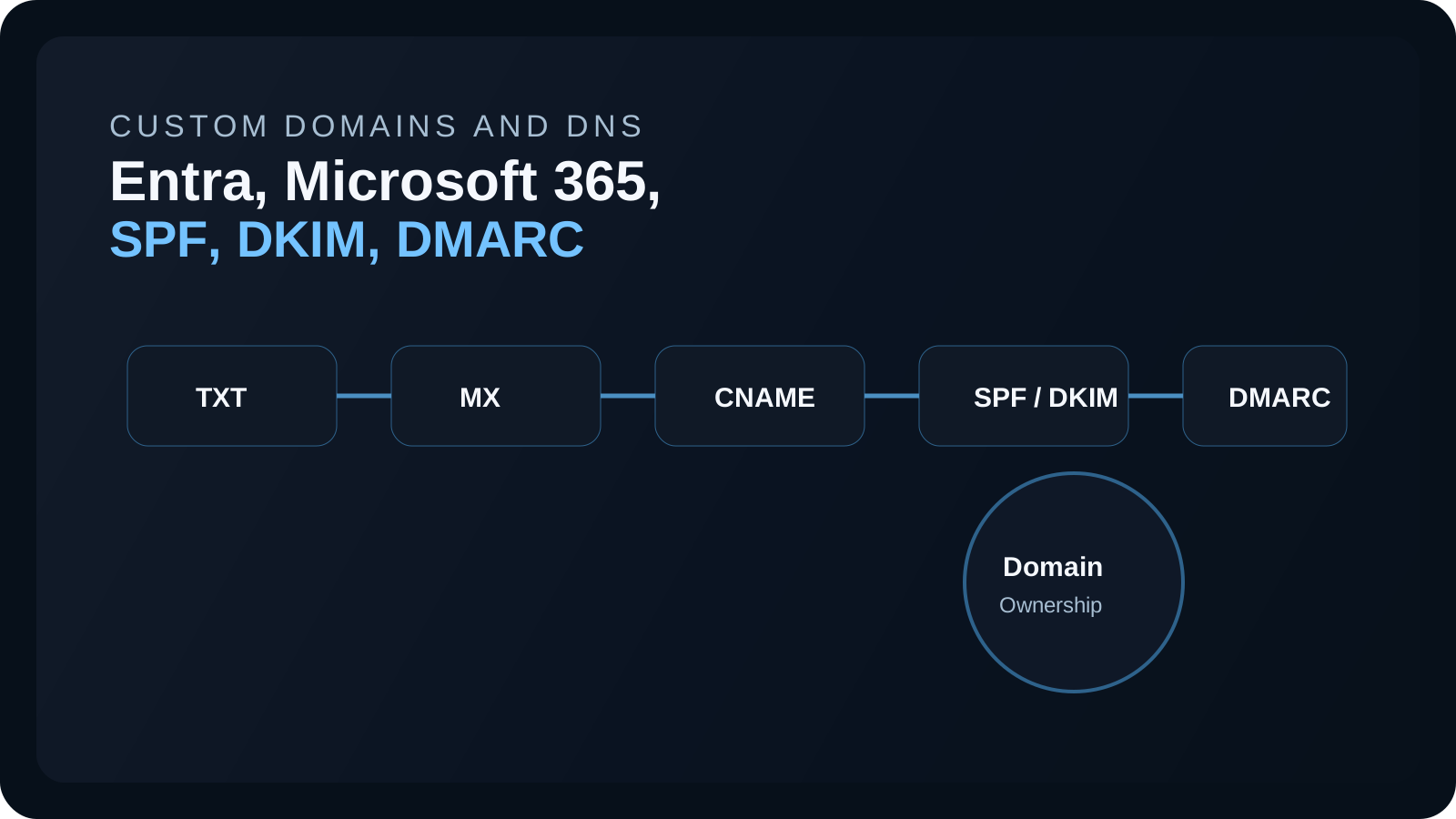
The wizard for adding a domain to Microsoft 365 makes it look easy. Paste in the records the portal generated, hit Verify, watch the green check appear. Six months later marketing wonders why their newsletter is landing in Gmail spam, sales discovers their sequence tool is being silently rejected by Outlook.com, and someone in finance asks why payroll messages stopped arriving at half the company. The records were configured correctly the first time. They just weren't complete.
Almost every email-authentication incident I've worked in a Microsoft 365 tenant traces back to something the initial onboarding got nearly right. SPF was set up but one sender got added later without an update. DKIM was published but never enabled for the custom domain, only for onmicrosoft.com. DMARC was set to p=reject on someone's recommendation without the two weeks of monitoring that should have come first. The mechanics aren't hard. The trap is in the operational details that the wizard doesn't surface and that most documentation describes only in isolation.
This piece walks through the records you actually publish for an EXO tenant, the failure modes I keep running into, the commands worth keeping in a terminal during a cutover, and the staged enforcement pattern that gets you to p=reject without making an enemy of every department head. It assumes you've read the basics and want what the basics skip.
What you're actually setting up
There are three records that decide whether your outbound mail is trusted. SPF publishes the list of servers allowed to send mail using your domain in the SMTP envelope from. DKIM signs outbound mail with a private key so receivers can verify the message came from you and wasn't tampered with along the way. DMARC stitches the two together against the visible From: address in the message and tells receivers what to do when something fails alignment.
None of the three is sufficient on its own. Gmail, Outlook.com, Yahoo, and most large enterprise gateways increasingly require a DMARC pass for reliable inbox placement, and they reach that conclusion by checking whether SPF or DKIM passed and whether the passing domain aligns with the visible From: header. Get DKIM wrong (signed but with the wrong domain) and DMARC fails even though everything looks right at first glance. That's the kind of detail you only catch if you've been bitten by it.
Microsoft's reference pages cover each of the three in isolation — SPF, DKIM, DMARC. What follows is the version that has them working together.
The records I actually publish for an EXO tenant
For a tenant where Exchange Online is the only outbound mail path and there's no third-party mail gateway in front of it, the working set looks like this:
| Type | Name | Value | What it does |
|---|---|---|---|
| TXT | @ |
MS=ms12345678 (Microsoft generates) |
One-time tenant ownership proof |
| MX | @ |
0 contoso-com.mail.protection.outlook.com |
Route inbound mail to EXO |
| TXT | @ |
v=spf1 include:spf.protection.outlook.com -all |
SPF policy |
| CNAME | selector1._domainkey |
selector1-contoso-com._domainkey.contoso.onmicrosoft.com |
DKIM selector 1 |
| CNAME | selector2._domainkey |
selector2-contoso-com._domainkey.contoso.onmicrosoft.com |
DKIM selector 2 (rotation) |
| TXT | _dmarc |
v=DMARC1; p=none; rua=mailto:dmarc@contoso.com; fo=1 |
DMARC policy + reporting |
| CNAME | autodiscover |
autodiscover.outlook.com |
Outlook autodiscover |
| CNAME | enterpriseregistration |
enterpriseregistration.windows.net |
Entra device registration |
| CNAME | enterpriseenrollment |
enterpriseenrollment.manage.microsoft.com |
Intune enrollment |
The autodiscover, enterpriseregistration, and enterpriseenrollment CNAMEs are the easy ones to miss because the admin centre wizard only surfaces them depending on which services are enabled. The complete list lives in External DNS records for Microsoft 365, and I'd publish it alongside any new domain even if you're not using all the services yet — the records don't cost anything and they save a future ticket the day someone turns on Intune enrollment for the first time.
The seven things that go wrong
These are the mistakes I see most often. Some are configuration. Some are process. All of them are avoidable if you know they exist.
Multiple SPF records on the same domain. SPF is defined in RFC 7208 and the spec is unambiguous on this — at most one record per domain. Two records produce PermError, and most receivers treat PermError as outright SPF failure. The way this happens in practice is depressingly common: marketing adds Mailchimp, sales adds HubSpot, IT adds SendGrid, security adds Proofpoint, and each vendor's documentation says "add this TXT record" without ever mentioning the existing one. Catch it with:
dig +short TXT contoso.com | grep -i 'v=spf1'If you see more than one line, consolidate. For a tenant running EXO plus Mailchimp plus SendGrid the unified record looks something like:
v=spf1 include:spf.protection.outlook.com include:_spf.mailchimp.com include:sendgrid.net -allSPF over the 10-lookup limit. Same RFC says SPF processing caps at ten DNS lookups. Each include:, a, mx, ptr, and exists: mechanism counts. Tenants that have integrated with every marketing and sales tool on earth routinely cross this limit and produce PermError on every receive, which means no one passes SPF regardless of the sender. Rule of thumb: more than four or five include: mechanisms is a yellow flag. Audit what's actually still in use (most tenants have a few zombie integrations from products they don't pay for any more), remove the dead ones, and for the survivors prefer providers that publish stable IP ranges you can flatten directly into ip4: or ip6: mechanisms.
~all instead of -all. ~all is "softfail" and made sense in 2010 when DMARC didn't exist yet. Today, with DMARC providing the override mechanism, ~all mostly leaves the door cracked open for spoofers. Once your legitimate senders are confirmed in SPF, tighten to -all and let DMARC arbitrate alignment.
DKIM CNAMEs published but signing never enabled. Publishing the two CNAMEs is a prerequisite for DKIM. It does not enable signing. You have to additionally turn DKIM on for the domain inside Exchange Online, and this is the step that gets skipped most often. The portal shows a green check on the domain page and people assume done. The check is:
Connect-ExchangeOnline
Get-DkimSigningConfig -Identity contoso.com |
    Format-List Identity, Enabled, Selector1CNAME, Selector2CNAME, Status
If Enabled is False, the CNAMEs are sitting in DNS doing nothing useful. Turn signing on:
Set-DkimSigningConfig -Identity contoso.com -Enabled $trueDKIM signing for onmicrosoft.com instead of the custom domain. This one looks like working DKIM right up until you check DMARC alignment. By default EXO signs outbound mail with the tenant's onmicrosoft.com DKIM identity. The signature is real, the signing is happening, but the signing domain is contoso.onmicrosoft.com while the visible From: is alice@contoso.com. Alignment fails. DMARC fails. Mail lands in spam. The fix is to publish the custom domain's two CNAMEs and enable DKIM signing for the custom domain explicitly, which is the difference between "DKIM technically signs" and "DKIM signs in a way DMARC accepts."
DMARC enforcement before reporting. The recommended progression is p=none to p=quarantine to p=reject, with at least two weeks of aggregate-report monitoring at each stage. Skipping straight to p=reject and waiting to see what breaks is a popular but genuinely bad idea, because by the time you realise the payroll system was sending from an unauthorized IP, two weeks of payslips have already bounced. The aggregate reports go to the address you publish in the rua= tag. You either build a parser, use a free monitoring service (Postmark and dmarcian both have free tiers), or run something in-house. Don't move from p=none until two consecutive weeks of reports show ≥98% of legitimate volume passing alignment.
Forwarders quietly breaking SPF, ignored. When mail.example.org forwards a message to alice@contoso.com, the receiver after the forwarder sees the forwarder's IP as the source. That IP isn't in your SPF record. SPF fails. DKIM usually survives (the signature is on the body, which forwarders typically don't rewrite), so DMARC can still pass on DKIM alignment — if your DKIM is configured correctly. This is one of the strongest arguments for getting DKIM right before tightening DMARC, because without working DKIM the forwarder path silently fails alignment and you get DMARC failures that look mysterious.
The toolkit to keep open during a cutover
Save this somewhere you can paste from quickly. These are the commands I run before, during, and after any domain cutover, and the day someone asks "is mail still flowing?" they're how I answer.
# Tenant ownership proof
dig +short TXT contoso.com | grep -i '^"MS='

# MX
dig +short MX contoso.com

# SPF
dig +short TXT contoso.com | grep -i 'v=spf1'

# DKIM CNAMEs
dig +short CNAME selector1._domainkey.contoso.com
dig +short CNAME selector2._domainkey.contoso.com

# DMARC
dig +short TXT _dmarc.contoso.com

# Test against a public resolver (sidesteps split-horizon DNS at your egress)
nslookup -type=TXT contoso.com 8.8.8.8
# DKIM signing state per domain
Get-DkimSigningConfig | Format-Table Identity, Enabled, Status, KeySize, RotateOnDate
# All accepted domains plus their authentication mode
Get-AcceptedDomain | Format-Table Name, DomainName, DomainType, AuthenticationTypeThe most useful verification step the wizard doesn't surface is reading a received message header at the destination. Send a test message from a pilot mailbox to a Gmail address and inspect the Authentication-Results: header. If you see spf=pass; dkim=pass; dmarc=pass, your setup is doing what it should. If any one of those isn't pass, you have your next thing to investigate before you flip the MX.
A cutover sequence that doesn't break things
The biggest single mistake I see is changing the MX record before mailboxes are ready, which produces inbound mail going to a tenant that doesn't have the recipient accounts yet and bouncing the senders. The order that avoids this:
- Add the domain to Microsoft 365 and publish only the ownership TXT record.
- Wait for verification to succeed (usually minutes, but allow up to an hour).
- Create the user accounts and mailboxes with the new domain UPN suffix. Don't yet set the new domain as anyone's primary SMTP — you're staging it.
- Publish SPF before the MX cutover. This means your authorized outbound senders are declared before any inbound starts coming in.
- Publish the DKIM CNAMEs and enable signing for the custom domain in EXO PowerShell. Confirm with
Get-DkimSigningConfig. - Publish DMARC at
p=nonewithrua=reporting addresses set. Get the parser running. - Send a test outbound message to a Gmail mailbox and confirm
spf=pass; dkim=pass; dmarc=passin the headers. If anything's not pass, don't proceed. - Lower the existing MX TTL to 300 (five minutes) at least 24 hours before the cutover, so the change propagates fast.
- Change the MX record to point at EXO.
- Set the new domain as the primary SMTP for users.
- Watch DMARC aggregate reports for at least 14 days before tightening to
p=quarantine. Another 14 days beforep=reject.
Tightening DMARC without bouncing payroll
The progression that has the best survival rate:
From p=none to p=quarantine: when aggregate reports show ≥98% of legitimate volume passing alignment for fourteen consecutive days. All known third-party senders inventoried and either added to SPF or ARC-signed by a forwarder you trust.
From p=quarantine to p=reject: when the quarantine policy has been live for at least fourteen days, no business-critical mail flows have been quarantined, and forensic reports from the ruf= mailbox don't show edge cases you haven't addressed.
The pct= tag is the escape hatch if the prior steps got skipped. pct=10 enforces on ten percent of failing mail; double it weekly. You shouldn't need it if you ran the staged progression, but it's good to know it exists.
A reasonable production record once you're at quarantine looks like:
v=DMARC1; p=quarantine; pct=25; rua=mailto:dmarc@contoso.com; ruf=mailto:dmarc-forensic@contoso.com; fo=1; aspf=r; adkim=rThe aspf=r and adkim=r tags request relaxed alignment, which means subdomain alignment counts as alignment. For organisations with multiple mail-sending subdomains that's the safer default. Use s (strict) only when you've explicitly designed for it.
Things I get asked
SPF passes syntax but mail still lands in spam, what's missing? Almost certainly DKIM alignment. Send a test message to Gmail and read the Authentication-Results: header. If dkim=fail or dkim=neutral, you've published CNAMEs but signing isn't enabled for the custom domain — only for onmicrosoft.com. Re-run Get-DkimSigningConfig and confirm.
Can I publish two DMARC records? Same answer as SPF: one per domain. For different subdomain policies, use the sp= tag on the parent or publish a separate _dmarc.<subdomain> record.
Why does SPF pass locally but fail at the recipient? Three things, usually. The receiver might be checking the envelope MailFrom domain when you think they're checking the From: header (or the reverse, and they don't match). Your egress might have split-horizon DNS that resolves differently than the public — the nslookup ... 8.8.8.8 trick catches this. Or your DNS provider is chaining CNAMEs and the receiver is hitting a different SPF record than the one you think you published.
How long does DKIM key rotation take in EXO? The two-selector model exists specifically to allow rotation without downtime. EXO rotates to selector 2 on its own schedule (default around 90 days). Receivers validate against whichever selector signed the message, so you don't need to coordinate. Just don't delete the older selector's CNAME until you've waited at least one rotation cycle.
Do I need DMARC if SPF and DKIM are already set up? Yes, increasingly. Gmail and Yahoo's 2024 bulk-sender requirements require DMARC for any domain sending more than 5,000 messages a day, and Microsoft has been publishing similar guidance. SPF and DKIM are necessary but no longer sufficient. DMARC is the alignment layer that modern receivers actually check.
What happens if I publish p=reject and something goes wrong? Mail that fails alignment gets bounced at the receiver. You'll see it in your aggregate reports within 24 hours. Quick mitigation is to drop back to p=quarantine or p=none, fix the underlying alignment issue, then re-tighten. This is exactly why the staged rollout matters — the recovery window is fast but not instant.
Where to read further
- SPF for Microsoft 365 — Microsoft Learn
- DKIM for Microsoft 365 — Microsoft Learn
- DMARC for Microsoft 365 — Microsoft Learn
- External DNS records for Microsoft 365 — Microsoft Learn
- Add a custom domain to Microsoft Entra — Microsoft Learn
- RFC 7208 — Sender Policy Framework
- RFC 6376 — DomainKeys Identified Mail
- RFC 7489 — DMARC
- Gmail bulk-sender requirements (2024)
About the author
MU.AMicrosoft 365 / Entra Engineer
MU.A is the editorial byline for Sentinel Identity, covering Microsoft Entra, Microsoft 365, and identity administration. Send corrections or questions through the contact page.
Feedback
Was this article helpful?
Anonymous — no account or comment required.
Related reading
25 Active Directory Interview Questions and Answers
Twenty-five practical Active Directory interview questions with clear, technically accurate answers covering AD DS, DNS, Kerberos, replication, Group Policy, recovery, and security.
Microsoft Entra Domain Services SAM Account Name Sync
Pilot Microsoft Entra Domain Services SAM account name sync safely: verify Active Directory source names, test legacy authentication, and monitor convergence.
Microsoft Entra Domainless SAML Federation: Admin Guide
Deploy Microsoft Entra domainless SAML federation safely for B2B guests: validate issuer routing, redemption order, claims, certificates, logs, and rollback.