
From the notebook
Why a Compliant Device Still Gets Blocked by Microsoft Entra Conditional Access — and How to Diagnose It
A detailed technical guide to why Microsoft Entra can block a sign-in from an Intune-compliant device, including device identity proof, browser support, client certificate behavior, and Conditional Access evaluation.
Overview
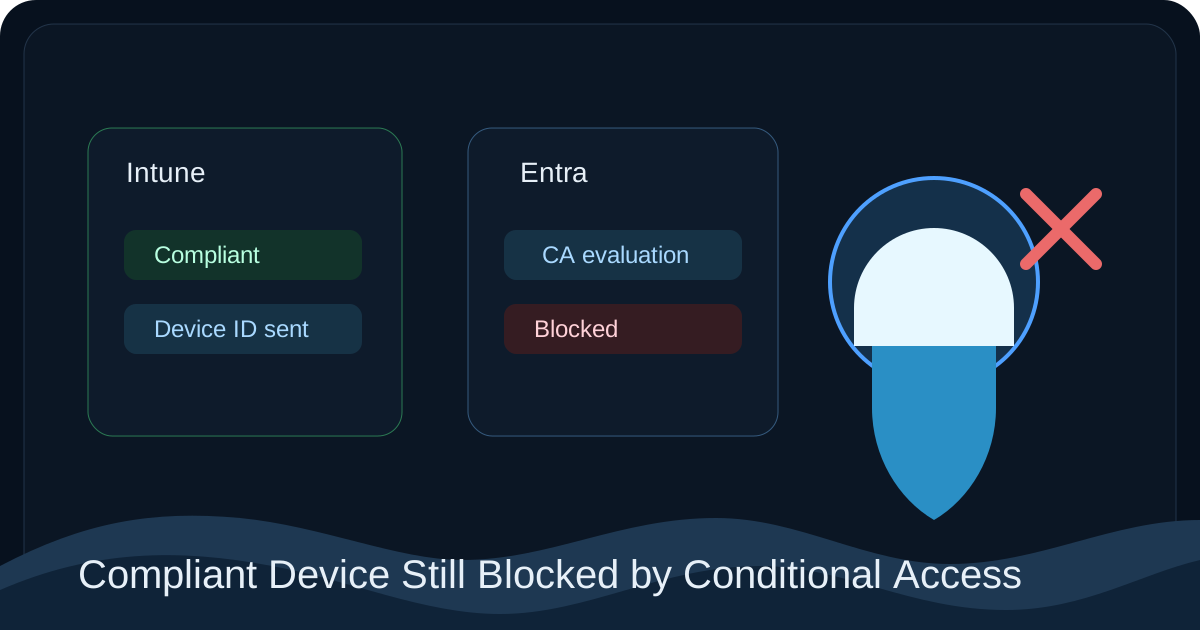
One of the most common Conditional Access escalations sounds simple: Intune shows the device as compliant, but Microsoft Entra still blocks the sign-in with a policy that requires the device to be marked as compliant.
In practice, this is rarely an Intune-only issue. Microsoft Entra does not evaluate compliance by querying Intune in a vacuum. It evaluates whether the sign-in request presented enough device identity evidence to associate the request with the correct Entra device object and then determine whether that object is managed and compliant.
Microsoft's most relevant references are Configure grant controls in Microsoft Entra Conditional Access, Use conditions in Conditional Access policies, Troubleshoot sign-in problems with Conditional Access, View applied Conditional Access policies in sign-in logs, and What is device identity?.
The important shift in thinking is this: a compliant device in Intune is only useful to Conditional Access if the sign-in transaction can prove which device is actually making the request.
How the compliant-device grant is evaluated
When a policy uses Require device to be marked as compliant, the Conditional Access engine is not making a simple yes-or-no call against the Intune console. The evaluation path has several stages.
First, Microsoft Entra must authenticate the user and collect sign-in context such as client app, platform, browser, and app target.
Second, the service must determine whether the request carries usable device identity information. For web scenarios, Microsoft documents in Use conditions in Conditional Access policies and Configure grant controls in Microsoft Entra Conditional Access that supported device checks rely on browser and platform-specific behavior and, in several scenarios, a client certificate path.
Third, once the sign-in is associated with a device object, Microsoft Entra evaluates whether that object is managed and compliant. If the device evidence is missing or wrong, the service cannot safely consume the compliance signal even if Intune shows the device as healthy.
That is why administrators often say "Intune says compliant, but Entra says blocked." A more accurate interpretation is "the sign-in request did not present the evidence Entra needed in order to trust Intune's compliance state for this session."
Device compliance and device identity are not the same thing
This is the most important concept in this topic. Device compliance answers whether the management platform considers the device aligned with policy. Device identity answers whether Microsoft Entra can confidently tie the current authentication request to the correct device object.
Microsoft's device identity overview is useful here because it makes clear that device identity is a first-class identity primitive in Microsoft Entra. Conditional Access consumes that primitive. If device identity is stale, missing, or unsupported in the client path, the compliance decision never gets a trustworthy input.
This is also why web support is narrower than many teams expect. A device may be fully managed, fully compliant, and fully healthy, but if the browser session cannot present the correct device evidence, the policy still fails.
Failure class 1: the browser path cannot provide device proof
Microsoft publishes the authoritative browser and platform support matrix in Use conditions in Conditional Access policies. That matrix should be treated as a runtime support contract, not as optional reading.
The important backend meaning of the matrix is this: Microsoft is telling you which browser and operating system combinations can carry enough device identity evidence to evaluate device-based policy correctly.
This is why a sign-in can succeed in one browser and fail in another without any change in Intune compliance:
- user authentication works in both browsers
- only one browser can provide the device proof needed for policy evaluation
- Entra therefore consumes compliance in one path and ignores or cannot trust it in the other
Microsoft also notes that private mode or disabled cookies can break the device check. That matters because the user experience looks deceptively simple. The same compliant device can pass in a normal tab and fail in a private session because the policy engine no longer receives the required device correlation.
Failure class 2: the device object is stale, mismatched, or unusable
Even on a supported browser path, the service still has to correlate the request to the correct Entra device object. If that object is stale, duplicated, disabled, or otherwise not aligned with the local device state, the policy engine can fail to consume the compliance signal correctly.
This is where Troubleshoot devices by using the dsregcmd command becomes important even though the user reported a Conditional Access problem. For Windows, dsregcmd /status helps you validate whether the device registration state that Windows is presenting matches the identity object the tenant expects.
If local registration and tenant object state disagree, the user can still appear to be signing in from "the same laptop," but Conditional Access is not evaluating human intent. It is evaluating the technical device identity attached to the sign-in request.
Failure class 3: the client certificate path did not complete correctly
Microsoft explains in Configure grant controls in Microsoft Entra Conditional Access that supported device-identification scenarios rely on a client certificate path for several browser and platform combinations.
This is one of the most misunderstood parts of compliant-device enforcement. Administrators often think that if the browser can show the login page and the user can type a password, then the device identity should be obvious to Entra. That is not how the evaluation works. Device proof has to be supplied through the supported technical path. If the certificate-based or device-identification exchange does not complete, the policy engine sees an authenticated user without sufficient device evidence.
That is why some failures look paradoxical:
- the user authenticated successfully
- the device is compliant
- the policy still blocks the session
The paradox disappears once you separate user authentication from device proof.
Failure class 4: the browser is supported, but the browser state is unsupported
Supported browser brand does not guarantee supported session state. Microsoft notes, for example, that Microsoft Edge support depends on the correct browser sign-in state in relevant scenarios, and the conditions guidance also notes that private mode and disabled cookies break device checks.
This matters in production because support teams often stop at "the user is on Edge" or "the user is on Chrome." That is not enough information. The real diagnostic questions are:
- was the browser session normal or private?
- were cookies available?
- did the browser complete the expected device-authentication behavior?
- is the user testing a supported browser-plus-platform combination or only a supported browser name?
Without those answers, browser-related Conditional Access troubleshooting becomes guesswork.
Failure class 5: policy design blocks its own bootstrap path
Microsoft recommends report-only mode, the What If tool, and the sign-in diagnostic because tenants often design a policy that is logically correct on paper but operationally impossible for some users to satisfy.
This usually happens when the tenant requires compliant-device access too early in the lifecycle:
- the user needs access to complete enrollment or establish the supported browser state
- the policy blocks the very access path that would allow the user to become policy-compliant
- the issue then appears to be device compliance, even though the true problem is a policy bootstrap loop
This is not a platform bug. It is a control-plane design problem.
A practical validation sequence
The fastest route to root cause is to validate the sign-in in the same order Microsoft Entra evaluates it.
1. Start with the sign-in logs
Open the failed sign-in and review the Conditional Access tab, as described in View applied Conditional Access policies in sign-in logs. Record whether the sign-in shows Device ID, Compliant, and Managed, and capture the error code if one is present. Microsoft documents codes such as 53000 (DeviceNotCompliant) and 53003 (BlockedByConditionalAccess) in Troubleshoot sign-in problems with Conditional Access.
2. Validate the browser and platform combination
Compare the exact browser and operating system pair to the Microsoft support matrix in Use conditions in Conditional Access policies. Do not rely on memory here. Device-based web access is support-matrix driven.
3. Validate local device identity
If the device is Windows-based, run dsregcmd /status and confirm the local registration state. If the device identity is stale locally, Conditional Access is consuming a bad input before it ever looks at compliance.
4. Use policy simulation tools
If the evidence is ambiguous, use the sign-in diagnostic and the What If tool. These tools help distinguish "policy applied correctly to bad input" from "policy design is wrong."
Remediation principles
The fix depends on which stage failed.
If the client path is unsupported, the correct fix is to move the user to a supported path. If the device identity is stale, repair device registration first. If the browser session is unsupported because of private mode or browser state, repeat the sign-in in a supported session. If the policy design is causing a bootstrap loop, redesign the scope and rollout order rather than asking users to keep retrying.
The common anti-pattern is to keep troubleshooting Intune compliance when the sign-in logs already show that the service never trusted the device identity in the first place.
Key implementation points
- Intune compliance is only usable to Conditional Access when the sign-in request also carries trusted device identity.
- Browser and platform support determine whether web-based device checks can work at all.
- Client certificate and device-identification paths are part of the evaluation, not background details.
- Sign-in logs are the most reliable evidence source for distinguishing real noncompliance from missing device proof.
Common questions
The device shows compliant in Intune but the sign-in log says non-compliant. Why the disagreement?
Intune compliance state propagates to Entra on a schedule (typically within an hour but occasionally longer). Run a manual sync from the device (Settings → Accounts → Access work or school → Info → Sync) and re-check after 30 minutes. If the disagreement persists, the device record in Entra may be stale or duplicated; check Get-MgDevice -Filter "deviceId eq '<id>'".
The user is on a brand-new compliant Windows 11 laptop. Why does Conditional Access still block?
Most often, the device is Entra registered but not yet Entra joined or hybrid joined. dsregcmd /status will tell you: AzureAdJoined : YES is what you want. If it shows WorkplaceJoined : YES instead, the device only has user-level registration, not full device identity. Re-join via Settings → Accounts → Access work or school → Connect → Join this device to Microsoft Entra.
Private browsing strips the PRT cookie. Are there other browser states that do the same?
Yes — third-party-cookie blocking (some Safari and Firefox configurations), enterprise content filters that strip cookies in transit, and some VPN clients that re-inject HTTPS sessions. The full browser-evidence walkthrough is in the Conditional Access browser support post.
What's the specific AADSTS code for "compliant device required" failures?
AADSTS530002 for device-not-compliant and AADSTS530003 for device-state missing entirely. AADSTS50097 indicates device authentication is required but the request didn't initiate a device-bound flow. The full reference is in the AADSTS error code documentation.
Can I troubleshoot this from the user side without an admin?
Partially. The user can run dsregcmd /status on Windows (no admin rights needed) and look for AzureAdJoined, DeviceAuthStatus, KeySignTest, and PRTUpdate lines. Anything not YES or SUCCESS is a candidate cause. The PRT failures post is the deeper walkthrough.
Does this affect macOS the same way?
Yes, with macOS substituting the Apple SSO plug-in and Keychain certificate for the Windows WAM + PRT model. Symptoms and causes map closely. The Apple SSO extension status can be inspected in Terminal: app-sso platform -s.
References
- Configure grant controls in Microsoft Entra Conditional Access
- Use conditions in Conditional Access policies
- Troubleshoot sign-in problems with Conditional Access
- View applied Conditional Access policies in sign-in logs
- What is device identity?
- Conditional Access report-only mode
- The What If tool
- Microsoft Edge and Conditional Access
About the author
MU.AMicrosoft 365 / Entra Engineer
MU.A is the editorial byline for Sentinel Identity, covering Microsoft Entra, Microsoft 365, and identity administration. Send corrections or questions through the contact page.
Feedback
Was this article helpful?
Anonymous — no account or comment required.
Related reading
Windows Hello Registration Blocked by Conditional Access
Fix Windows Hello registration blocked by Conditional Access: trace the policy, break bootstrap loops, validate TAP, and restore provisioning safely.
AADSTS50076 MFA Required: Microsoft Entra Fix Guide
Fix AADSTS50076 MFA required errors by tracing Conditional Access, per-user MFA, session changes, app interaction, registered methods, and sign-in evidence.
Microsoft Entra Agent User Conditional Access Guide
Configure Microsoft Entra agent user Conditional Access safely: choose the right scope, validate endpoint signals, monitor logs, and roll out cleanly.