
From the notebook
Access Reviews in Microsoft Entra: What They Are, How They Work, and How To Set One Up That Actually Closes the Loop
An access review is the feature that periodically asks someone (usually a manager) to confirm that the people who have access to a group, role, or application still need it. Sounds simple. The configuration choices that decide whether the loop actually closes — what to scope, who to ask, what happens when reviewers don't respond — are where the value lives. Here's the full picture, from what the feature is to how to operate it in production.
If you've ever opened a Microsoft 365 group three years after it was created and found people in it who left the company two years ago, you've seen the problem access reviews exist to solve. Access in any directory drifts. Someone gets added to a group for a project, the project ends, nobody removes them. Multiply that by hundreds of groups and thousands of users over years and you end up with a directory full of stale memberships nobody is willing to manually audit because it would take weeks.
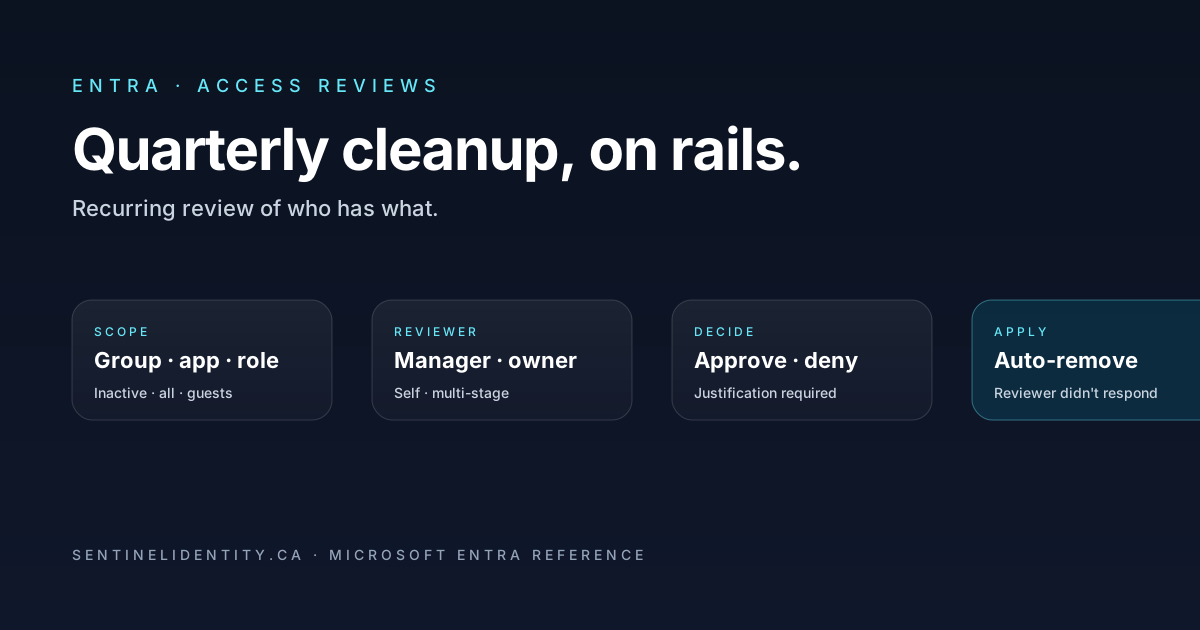
A Microsoft Entra access review is the feature that automates the periodic version of that audit. You configure a review that says "every quarter, ask the manager of each person in this group whether they still need to be in it." The system sends each reviewer a list of the people they're reviewing, the reviewer ticks Approve or Deny next to each name, and at the end of the review period the system applies the decisions. People who got Deny lose their membership. People whose reviewer never responded can also lose membership automatically, if you've configured the review to handle that case (which is the configuration choice that determines whether the whole thing is theatre or actually does something).
That's the entire feature in one paragraph. The reason it's worth writing 2,000 words about isn't that the mechanics are complex; it's that the configuration choices you make at review-creation time are the difference between a review that genuinely cleans up access and a review that produces a green checkmark in a compliance report while access keeps drifting in the background. This piece walks through what an access review is, where it fits with other Microsoft Entra governance features, the vocabulary you need to know, four scenarios where you'd actually use one, the portal walkthrough plus PowerShell, the three decisions that decide whether the loop closes, and the operational queries that prove the reviews are doing real work.
Where access reviews sit in the bigger picture
Microsoft Entra has three governance features that often get confused because they sound similar and overlap in subtle ways. It's worth pinning them down before going further because each solves a different problem and you'll use them together, not as substitutes.
Privileged Identity Management (PIM) controls just-in-time activation of privileged roles. A user is eligible for the Global Administrator role but doesn't have it active. When they need to do an admin action, they activate the role for a bounded window (typically a few hours), the activation gets logged, the role auto-deactivates when the window expires. PIM answers "who can use this role right now."
Entitlement Management controls the initial grant of access. A user requests an "access package" (a bundle of group memberships, app roles, SharePoint site access), the request goes through an approval workflow, and if approved the bundle is granted with a defined expiration. Entitlement Management answers "how does someone get access, and when does it end."
Access Reviews are the periodic recheck of access that's already granted. They don't grant or revoke access on activation like PIM, and they don't manage the request flow like Entitlement Management. They ask, on a schedule, "should this person still have what they have." Access Reviews answer "is this access still valid."
All three are part of Microsoft Entra ID Governance, which is either bundled with Entra ID P2 or licensed as a separate Entra ID Governance SKU depending on your tenant's licensing model. You use them together: PIM for privileged role activations, Entitlement Management for initial grants of bundled resources, and Access Reviews for periodic cleanup of memberships that don't have natural expiry.
There's also a related-but-different thing called Microsoft 365 Group expiration policies, which is built into Microsoft 365 and decides whether unused groups themselves get deleted on a schedule. That's about the group's existence, not about who's in the group. Access Reviews can complement group expiration by cleaning up memberships even when the group itself is still legitimately in use.
The vocabulary
Before any walkthrough, the five terms that show up everywhere in the access reviews documentation and that everything else depends on.
Review definition. The configuration object that says "this review runs on this schedule, against this scope, with these reviewers, with these settings." It's the recurring template.
Review instance. Each time the review fires (every quarter, every six months, or just once), it produces an instance. The instance is the actual run — the list of people being reviewed, the decisions, the timestamps. A recurring review definition produces many instances over time. A one-time review produces one instance.
Scope. What's being reviewed. Could be the members of a specific security group, the members of a Microsoft 365 group, the users assigned to an application, the users in a specific Entra role (Global Administrator, Reader, whatever), or the active assignments of an Entitlement Management access package. The scope can also be filtered — "guests only," "users who haven't signed in for 90 days" — which is the dial that turns a 400-person review into a 12-person review and makes the difference between a review the reviewer actually engages with and one they rubber-stamp.
Reviewer. The person who decides Approve or Deny for each user. Three common patterns: the manager of the user being reviewed (system looks up manager attribute), the owner of the resource being reviewed (group owner, application owner), or a named individual or group (you pick). You can also have the user review their own access ("self-review"), which is useful for situations where the user is the only one who actually knows whether they still need the access.
Auto-apply rule. The setting that determines what happens to users whose reviewer didn't respond by the deadline. Three values: "Take no action" (the user keeps their access), "Remove access" (the user loses access), "Approve access" (the user keeps access, marked as approved). This is the single configuration choice that decides whether the review is real or theatre, covered in detail below.
Recommendations. The system can surface hints to the reviewer alongside each user — "this user hasn't signed in for 60 days" being the most useful. The reviewer can click "Apply recommendations" to bulk-apply the system's suggestion, which dramatically speeds up review completion for the inactive-user case.
A sixth term worth knowing if you'll use multi-stage reviews: stage. A multi-stage review has the manager review first, then the resource owner second, then maybe the security team third. Each stage produces its own decision; the final outcome combines them. Useful for high-value resources where one approver isn't enough.
Four scenarios where you'd actually use an access review
Concrete situations, in order of how often I've seen each.
Quarterly review of guest users in a sensitive Microsoft 365 group. Finance has a Microsoft 365 group called Quarterly-Earnings-Pre-Release for everyone who reviews the numbers before they're public. Members include a few external auditors. Some of those auditors finish their engagement and aren't in the group's interest list anymore, but nobody told the group owner. A quarterly review scoped to "guest users in Quarterly-Earnings-Pre-Release" with the group owner as reviewer surfaces the stale guest accounts and removes them. This is the highest-value access review pattern for most enterprises because guest lifecycle is where access drift hits worst.
Annual review of who's in a privileged Entra role. Twenty people are assigned the Security Reader role. Some left the security team a year ago. An annual access review scoped to "members of Security Reader" with the role-management team as reviewer flags the people who shouldn't be there anymore. This works particularly well in combination with PIM — you review the eligibility annually, and PIM handles the just-in-time activation between reviews.
Project-bound access. A consulting firm needs access to your finance app for a six-month engagement. You grant access via an Entitlement Management access package with a six-month expiry, and you attach a monthly access review during those six months. The access package controls the upper-bound expiry; the access reviews give the engagement sponsor a recurring chance to revoke access earlier if the consulting team's involvement changes. Belt and suspenders.
Compliance attestation. An auditor asks for evidence that someone has reviewed who has access to a regulated application within the last twelve months. The access review's audit log is the evidence — it shows which users were reviewed, who reviewed them, the decisions made, when they were applied. Configure annual reviews on every regulated application and the attestation is generated automatically rather than scrambled together at audit time.
If none of those four scenarios applies to a particular group or role, you probably don't need an access review on it. Don't review every group out of completeness. Reviews on groups that don't drift produce false confidence without surfacing anything.
The three decisions that decide whether the loop closes
Now the actual configuration. The portal walks you through about fifteen settings; the three that matter most are below. The other twelve have sensible defaults.
Decision one: Scope. Tight or broad? A review of "all 400 members of the Engineering Microsoft 365 group" produces a list the engineering director will rubber-stamp because they cannot possibly remember every relationship. A review of "guest users in the Engineering group" produces a list of 8 people the director can actually evaluate meaningfully. A review of "members of the Engineering group who haven't signed in for 90 days" produces a list of 12 people who are statistically likely to be removable without controversy. Always scope as tightly as the underlying question lets you. Use the inactive-user filter where it applies. Don't review entire groups when a filtered subset answers the actual question.
Decision two: Reviewer. Who has the knowledge to decide? Three options to consider, with trade-offs:
- Manager of the user being reviewed. Good default for employees. The manager knows whether their direct report is still doing work that needs this access. Fails when the user has no manager attribute set (common for guests, for service accounts that shouldn't be in reviews anyway, and for B2B users whose manager exists in another tenant the system can't see). Fails silently — the review just doesn't reach anyone, which is the worst kind of failure.
- Resource owner. The owner of the group, application, or role. Good when the resource has a single clear owner who knows what the access is for. Fails when the owner field is empty or the named owner left the company. Fails when the owner doesn't actually know the users (a common case for large operational groups owned by an IT team that doesn't know who all the members are).
- Self-review. The user reviews their own access. Counterintuitively useful for some scenarios — the user often knows better than anyone whether they still need a specific access. The obvious failure mode is that users say yes by default to keep their access, but for legitimately ambiguous cases (project access where the user knows whether the project is still active) self-review is often the most accurate.
For guests specifically, a "selected reviewers" group of named internal sponsors works best. Guests have no internal manager, and using the resource owner as reviewer often means asking someone who has no idea who the guest is. Designating an internal sponsor per guest at invite time and using that sponsor as the reviewer is the cleanest model.
Decision three: Auto-apply rule for non-responders. This is the configuration that determines whether the review is real or ceremonial.
A review fires. The reviewer gets an email. The reviewer is on vacation, or busy, or just doesn't notice the email, and the review period expires. What happens?
| Setting | What happens at expiry |
|---|---|
| Take no action | The user keeps their access. The system logs "reviewer didn't respond, no change made." |
| Remove access | The user loses their access. The system logs "reviewer didn't respond, treating as Deny by default." |
| Approve access | The user keeps their access, marked Approved. (Essentially the same as Take no action but generates a "decision" in the audit log.) |
In a tenant of any size, busy reviewers are not the exception — they're the rule. If "Take no action" is the default, your access review effectively never removes anyone, because most decisions never come back. The whole point of the loop evaporates.
The right default for almost every review is Remove access. It feels aggressive when you're first configuring it. It is also the only setting that actually makes the review do work. If a reviewer is nervous about it, the answer is to make sure they actually review — not to disable the safety mechanism.
If you're genuinely nervous about auto-removing on first rollout, run one review cycle with the rule set to "Take no action" to gather a baseline of response rates and see who actually engages. Then tighten to "Remove access" for the next cycle. Don't stay on "Take no action" forever — that's the failure mode you're trying to escape.
Setting up a review — portal walkthrough
The example scenario: quarterly review of guest members in a sensitive Microsoft 365 group, with the internal sponsor as reviewer and the loop set to actually close.
- Open the Microsoft Entra admin centre → Identity Governance → Access reviews → New access review.
- What to review: Teams + Groups.
- Review scope: Select the specific group. Under Scope, choose Guest users only. (This filter alone removes most of the noise.)
- Reviewers: Default is "User's manager." For guests, switch to Selected reviewers and pick the internal sponsor or the team that owns the partner relationship. Guests don't have a manager attribute in your tenant.
- Recurrence: Quarterly. First run = next Monday. End = no end date (let it run indefinitely).
- Duration each review is open: 21 days. Not less (managers go on vacation); not more (reviews shouldn't drag on).
- Upon completion settings:
- Auto-apply = Yes.
- If reviewer doesn't respond = Remove access.
- Justification required = Yes.
- Decision helpers / recommendations: Enable. The system surfaces "this user hasn't signed in for N days" alongside each name; the reviewer can click Apply Recommendations to bulk-deny inactive users.
- Notifications: Default on. Reviewers get a starting email, a midway reminder, and a final reminder.
- Create.
The review now runs on its schedule without further intervention. First instance fires next Monday and stays open for 21 days.
Setting up the same review via PowerShell
For repeatable deployment across many groups, the Graph PowerShell version of the same configuration:
Connect-MgGraph -Scopes "AccessReview.ReadWrite.All"

$review = @{
    displayName             = "Quarterly guest review — Finance"
    descriptionForAdmins    = "Quarterly review of guest membership in Finance M365 group"
    descriptionForReviewers = "Please verify these external collaborators still need access."
    scope = @{
        "@odata.type" = "#microsoft.graph.accessReviewQueryScope"
        query         = "/groups/<group-id>/transitiveMembers/microsoft.graph.user/?$filter=(userType eq 'Guest')"
        queryType     = "MicrosoftGraph"
    }
    reviewers = @(
        @{ query = "/users/<sponsor-user-id>"; queryType = "MicrosoftGraph" }
    )
    settings = @{
        mailNotificationsEnabled         = $true
        reminderNotificationsEnabled     = $true
        justificationRequiredOnApproval  = $true
        defaultDecisionEnabled           = $true
        defaultDecision                  = "Deny"
        instanceDurationInDays           = 21
        autoApplyDecisionsEnabled        = $true
        recommendationsEnabled           = $true
        recurrence = @{
            pattern = @{ type = "absoluteMonthly"; interval = 3 }
            range   = @{ type = "noEnd"; startDate = (Get-Date).ToString("yyyy-MM-dd") }
        }
    }
}

New-MgIdentityGovernanceAccessReviewDefinition -BodyParameter $review
The setting that matters most is defaultDecision = "Deny". That's the auto-apply rule. Without it, the review is theatre.
Running it in production
What to expect during steady-state operation and how to know it's working.
The reviewer experience. When a review instance opens, designated reviewers get an email from your tenant linking to https://myaccess.microsoft.com. They click in, see a list of users to decide on, and tick Approve / Deny next to each. The system shows recommendations alongside each user (last sign-in date, whether the user has accepted recent justifications). Reviewers can also click "Apply recommendations" to bulk-apply for users where the system has a clear signal. A typical 12-user review takes a reviewer about five minutes.
Reminder cadence. The system sends a starting email, a reminder at the midpoint of the review window, and a final reminder the day before the window closes. Most reviewers respond after the first reminder; a small fraction respond only at the final-reminder stage; a smaller fraction don't respond at all and trigger the auto-apply rule.
What happens at the end of the window. The system applies decisions. Users marked Deny lose access (their membership is removed from the group, or their role assignment is revoked, or their application access is removed, depending on the scope). Users marked Approve keep their access. Users with no decision get the auto-apply rule applied — Remove access in the configuration above, so they lose their access too.
Proving it's working. A KQL query against the Entra audit log confirms decisions are being applied:
AuditLogs
| where TimeGenerated > ago(90d)
| where Category == "IdentityGovernance"
| where OperationName has "Access review decision applied"
| extend Reviewer = tostring(InitiatedBy.user.userPrincipalName),
         Target   = tostring(TargetResources[0].userPrincipalName),
         Decision = tostring(AdditionalDetails[0].value)
| project TimeGenerated, Reviewer, Target, Decision, CorrelationId
| order by TimeGenerated desc
And a follow-up query to catch reviews where the loop didn't close — a sign the auto-apply rule was misconfigured or non-responders weren't handled:
AuditLogs
| where TimeGenerated > ago(90d)
| where Category == "IdentityGovernance"
| where OperationName == "Apply access review"
| extend Review          = tostring(TargetResources[0].displayName),
         AppliedCount    = toint(AdditionalDetails[?key == "appliedDecisions"].value),
         NotAppliedCount = toint(AdditionalDetails[?key == "notAppliedDecisions"].value)
| where NotAppliedCount > 0
| project TimeGenerated, Review, AppliedCount, NotAppliedCount
| order by TimeGenerated desc
If reviews show up on the second query, they're configured with "Take no action" and aren't doing what they're meant to do. Reconfigure.
What goes wrong
The five failure modes that account for almost every "the access review isn't working" complaint.
The auto-apply rule was set to "Take no action." Most common by a long way. Reviews fire, reviewers don't respond, nothing happens, the next review fires, same outcome. Fix: change the rule to Remove access on the next review iteration.
The reviewer field defaulted to "User's manager" for a population that doesn't have managers. Guests have no manager. Service accounts have no manager (and shouldn't be reviewed at all). Reviews go out and the system can't find a reviewer, so nothing gets done. Fix: use a Selected Reviewers group instead of User's manager.
The scope is too broad. Reviewer faces 200 users, can't evaluate each, ticks Approve for everyone to clear the queue. Fix: narrow scope with the inactive-user filter, or split into multiple smaller reviews.
Aging on the underlying group is also active and the review-removal collides. Rare but real — a group that's both being reviewed and being aged by some other process can produce contradictory decisions. Fix: pick one cleanup mechanism per group.
The review was created without a recurrence schedule and the team forgot. A one-time review is the right answer for one-off audits, but if you meant it to run quarterly forever, the lack of recurrence means it only ran once. Fix: edit the review definition to add recurrence.
Things people ask
Can the same user be in two access reviews at once? Yes. Each review evaluates independently. If review A says Approve and review B says Deny, the user keeps access via A's resource and loses access via B's resource simultaneously. That's usually a sign you've over-scoped one of the two reviews.
What if the user is in a dynamic group and a review removes them? The dynamic group rule re-evaluates and may re-add them within minutes. Reviews on dynamic groups are mostly pointless for this reason — the rule defines the membership, not human judgement. Don't review dynamic groups.
Does the reviewer need a license? Yes. The reviewer needs a Microsoft Entra ID Governance license. So does the user being reviewed if the review targets Entitlement Management access packages. Verify your tenant's licensing model for current details.
What's the difference between reviewing a group and reviewing an app's assignments? Reviewing the group removes group membership (which can have downstream effects on whatever resources the group grants). Reviewing the app's assignments removes the user from the app role directly without touching their group memberships. They're related but distinct surfaces; pick the one that matches the resource you actually care about controlling.
Can I export decisions to a CSV for offline analysis? Yes. The completed review instance has an Export button in the portal, or the Graph API's decisions endpoint returns the same data. Useful for compliance reporting outside the Entra audit log.
Will users be notified when their access is removed? By default, yes — they receive an email explaining that their access was removed as part of an access review, with the review name and the reviewer's justification (if any). You can customise the notification text per review.
What happens to the user's data when access is removed? Nothing destructive — only the access grant is removed. If the user was a member of a SharePoint site and the review removes that membership, the user loses access to the site but the site's content is untouched. Removal is reversible if the decision was wrong; restoring access is the same flow as granting it the first time.
Where to read further
- What is access reviews — Microsoft Learn
- Create an access review of groups — Microsoft Learn
- Review settings and recommendations — Microsoft Learn
- Access reviews via Microsoft Graph — Microsoft Learn
- Microsoft Entra ID Governance overview — Microsoft Learn
- Microsoft Entra ID Governance licensing — Microsoft Learn
About the author
MU.AMicrosoft 365 / Entra Engineer
MU.A is the editorial byline for Sentinel Identity, covering Microsoft Entra, Microsoft 365, and identity administration. Send corrections or questions through the contact page.
Feedback
Was this article helpful?
Anonymous — no account or comment required.
Related reading
Azure RBAC Access Packages in Microsoft Entra: Admin Guide
Govern Azure RBAC access with Microsoft Entra access packages: scope roles safely, choose active or eligible access, pilot approvals, and verify removal.
Manage Microsoft Entra Recommendations with Microsoft Graph
Manage Microsoft Entra recommendations with Graph beta: inventory resources, add workflow tags, choose accurate states, and preserve review evidence.
Prevent Nested Groups in Microsoft Entra: Admin Guide
Prevent nested groups in Microsoft Entra with the new disableNesting preview control. Inventory dependencies, pilot safely, monitor changes, and roll back.