Technical analysis

How to Build a Physical Domain Controller: A Practical Walkthrough

Every AD deployment guide assumes you already have a running Windows Server. What if you don't? What if you've been handed a physical box and told 'make this a domain controller'? Grab a coffee. We're going from bare metal to fully-functional DC — hardware to Windows install to promotion — in one post.

MUA
MU.A
Microsoft 365 / Entra Engineer
Published
8 min read
Cover image for How to Build a Physical Domain Controller: A Practical Walkthrough

Grab a coffee. This post is different from most AD content on the internet, which starts with the assumption "here you are, standing in front of a running Windows Server." Real life doesn't work that way. Sometimes you're handed hardware and told to make it a DC.

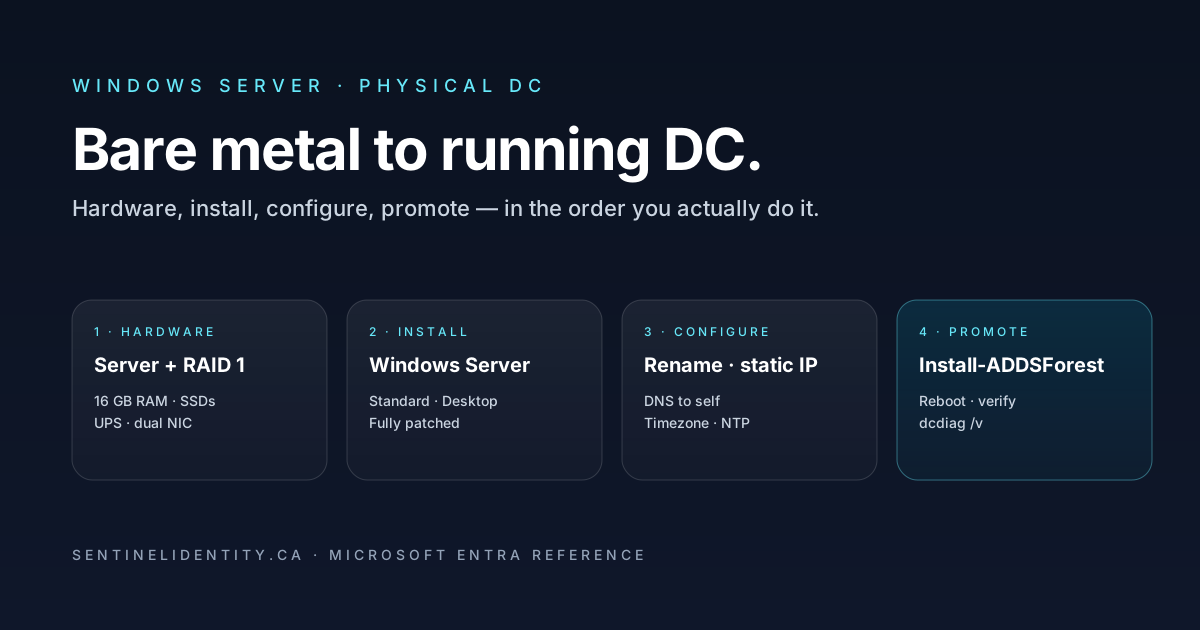
Today we go from bare metal to functional Domain Controller, in the order you'd actually do it. Hardware selection, Windows Server install, initial config, joining the network, and finally promoting to a DC.

If you'd rather build a virtual DC (much easier for learning), check out the home lab guide — that walks through the VM version. Today's post is for when you have real hardware.

When you'd actually want a physical DC

Most modern environments run DCs as virtual machines. It's easier to manage, back up, and move around. But physical DCs are still a thing in certain scenarios:

  • Small remote offices where you don't have a hypervisor cluster
  • Air-gapped or high-security environments where virtualization introduces attack surface
  • Legacy setups that never migrated to VMs
  • Very small businesses running one physical box that does everything (DC + file server + print server all in one)

If none of those apply to you, virtualize the DC. If any do, keep reading.

Hardware selection

You don't need a supercomputer. A DC handles authentication traffic, DNS lookups, and Group Policy downloads — none of which are CPU-intensive. Modest hardware is fine.

Minimum spec for a small-office DC:

  • CPU: 4-core Xeon E3 or Ryzen equivalent (roughly 2020 or newer)
  • RAM: 16 GB (Windows Server itself wants 4 GB; leave 12 GB for AD cache and DNS)
  • Storage: 2× 500 GB SSDs in RAID 1 mirror. AD's database (ntds.dit) benefits massively from SSD; RAID protects against a single disk failure.
  • Network: Dual gigabit NICs, teamed for redundancy
  • Power: Redundant PSUs if the budget allows, plus UPS. A DC losing power mid-write can corrupt the AD database.

For a larger environment (thousands of users, more than one DC):

  • Same shape but more RAM (32 GB+) and more storage headroom
  • 10 GbE if the network supports it, though 1 GbE is almost always sufficient

Server form factor. A small-office DC works fine on a mini-tower or 1U rackmount. Business-class Dell PowerEdge T-series, HPE ProLiant ML-series, or refurbished 1U models from either brand are standard picks.

RAID setup. Configure hardware RAID (or software RAID via Storage Spaces) before installing Windows. AD's transactional database really wants redundant storage. RAID 1 (mirror) is enough for most DCs; RAID 10 if you have four drives and want more speed.

Windows Server installation

Once the hardware is assembled and RAID is configured, install Windows Server. Choose the current in-support version — as of mid-2026 that means Windows Server 2025.

Edition: Standard is fine for most DCs. Datacenter gives you unlimited VM licensing (irrelevant here since we're on bare metal) and Storage Spaces Direct (also irrelevant for a small DC).

Install type: Desktop Experience (with GUI) for your first DC. Server Core is more efficient but the learning curve is steep — save it for when you're comfortable.

Installation steps:

  1. Boot from Windows Server ISO/USB. Follow standard prompts — pick language, keyboard, edition.
  2. Choose Custom install. Pick the RAID volume for the OS.
  3. Set the administrator password. Use a strong, memorable password. You'll need it many times before the DC is fully configured.
  4. Sign in and let Windows do its initial setup dance. Takes 5–10 minutes.

Initial configuration (before promotion)

Before you can promote this box to a DC, you need to configure it properly.

Rename the server

Windows generates a random hostname. Change it to something you'll actually use. Naming conventions vary — some orgs use DC01, DC02; others use location-based like TORDC01, LONDC02.

Rename-Computer -NewName "DC01" -Restart

The server reboots. When it comes back, the hostname is set.

Set a static IP

DCs must have static IPs. Never DHCP.

New-NetIPAddress -InterfaceAlias "Ethernet" -IPAddress 10.10.0.10 -PrefixLength 24 -DefaultGateway 10.10.0.1

Then set DNS. Very important: point the DC at itself for DNS. This is essential for AD DS installation.

Set-DnsClientServerAddress -InterfaceAlias "Ethernet" -ServerAddresses "127.0.0.1"

If you're adding this DC to an existing domain, point it at an existing DC:

Set-DnsClientServerAddress -InterfaceAlias "Ethernet" -ServerAddresses "10.10.0.10","127.0.0.1"

Set the time zone and time source

DCs need accurate time. Kerberos tokens are time-stamped and reject requests that are more than 5 minutes off. Set the timezone:

Set-TimeZone -Name "Eastern Standard Time"

For the primary DC in a new forest, sync to an external NTP source:

w32tm /config /manualpeerlist:"time.windows.com,0x8" /syncfromflags:manual /update
w32tm /resync

Install pending Windows updates

Before installing any roles:

Install-Module PSWindowsUpdate -Force
Import-Module PSWindowsUpdate
Get-WindowsUpdate -AcceptAll -Install -AutoReboot

Wait through the reboots. When it comes back, you're on the latest patch level.

Install the AD DS role

Now install the Active Directory Domain Services role. This just installs the software — it doesn't yet make the server a DC.

Install-WindowsFeature -Name AD-Domain-Services -IncludeManagementTools

Takes 2–3 minutes.

Promote to Domain Controller

This is the step that turns your Windows Server into an actual DC. Two scenarios:

Scenario A: First DC in a brand-new forest

You're building from scratch. No existing AD.

Install-ADDSForest `
  -DomainName "contoso.local" `
  -DomainNetbiosName "CONTOSO" `
  -DomainMode "WinThreshold" `
  -ForestMode "WinThreshold" `
  -InstallDns:$true `
  -SafeModeAdministratorPassword (ConvertTo-SecureString -String "YourDsrmPassword!" -AsPlainText -Force) `
  -Force:$true

The SafeModeAdministratorPassword is the Directory Services Restore Mode (DSRM) password. You'll need it if you ever have to restore AD from backup. Write it down somewhere safe (like a password vault, not a sticky note).

The server reboots automatically. When it comes back, it's a fully-functional DC hosting the new forest.

Scenario B: Adding a DC to an existing domain

The DC will join an existing forest. Make sure DNS points at an existing DC first.

Install-ADDSDomainController `
  -DomainName "contoso.local" `
  -Credential (Get-Credential) `
  -InstallDns:$true `
  -SafeModeAdministratorPassword (ConvertTo-SecureString -String "YourDsrmPassword!" -AsPlainText -Force) `
  -Force:$true

You'll be prompted for domain admin credentials. The server reboots and joins the existing domain as a new DC.

Post-promotion verification

Once the DC is up, verify it's healthy before considering it done.

Check DC health with dcdiag

dcdiag /v

Every test should pass. If any fail, investigate before continuing. Common early failures are DNS-related (fixed by adjusting DNS settings) or replication-related (fixed by waiting a few minutes or restarting the NetLogon service).

Verify replication

repadmin /showrepl

For a new forest, you'll see the DC replicating with itself. For an additional DC, you should see it replicating with the existing DCs.

Confirm the DC is registered in DNS

nslookup contoso.local

Should return your DC's IP address. Also check for SRV records:

nslookup -type=srv _ldap._tcp.dc._msdcs.contoso.local

Should return DC01's hostname and IP.

Post-promotion configuration

Your DC is live. Now the operational stuff:

Backup. Configure Windows Server Backup or your enterprise backup solution to include System State (which contains AD). Backup at least daily. Test restoration at least quarterly.

Monitoring. Set up alerts for:

  • Replication failures
  • Disk space on the AD database volume
  • CPU/memory anomalies
  • Failed logon events
  • Time sync drift

Assign to a site (if this is a multi-site deployment). Open Sites and Services, move the DC to the appropriate site.

Add to your patch schedule. DCs need consistent patching. Add this DC to your monthly patch rotation with adequate maintenance windows.

What breaks during DC builds

"AD DS installation fails with a DNS error." DC can't find or resolve the domain. Check that DNS is pointing at the correct server (127.0.0.1 for a new forest; existing DC IP for an additional DC).

"Promotion fails saying 'the server is not operational.'" Usually means the DC can't reach an existing DC in the domain. Check network connectivity and firewall rules.

"Post-promotion, dcdiag reports errors on replication tests." Give it 15–30 minutes for initial replication to complete. If errors persist, check the site link between this DC and its replication partner.

"Time skew errors after DC comes up." The DC's time drifted before it joined. Force a sync: w32tm /resync /force.

"Users can log in but Group Policy isn't applying." Almost always DNS. Confirm domain-joined machines resolve _ldap._tcp.dc._msdcs.contoso.local correctly.

The FAQ

Can I promote a Windows Server that's already been in use as a file server? Yes, but wipe and reinstall first. AD DS wants a clean OS install with predictable state.

Do I need Windows Server Datacenter for a DC? No. Standard edition is enough for a DC.

Can I run other roles on a DC? Technically yes, in small environments (a DC plus file server plus print server on one box). In larger environments, DCs are single-purpose for security and reliability reasons.

What's the difference between Server Core and Desktop Experience? Desktop Experience has the familiar GUI. Server Core is command-line only, uses less RAM and less disk, and has a smaller attack surface. For your first DC, use Desktop Experience.

Can I install Windows Server on any physical hardware? It has to be x86-64 compatible. Any modern Intel Xeon or AMD EPYC/Ryzen server works. Old workstations technically work but usually aren't reliable enough for production.

Do I need Windows Server licensing? Yes, unless you're doing this in a lab with evaluation media. Evaluation is fine for 180 days, plenty for learning.

Where to go next

Now go grab a coffee. Building a physical DC is one of those things everyone talks about in cert-exam terms and few actually do these days. If you did this today, you're now in the "few."

About the author

MUA

MU.AMicrosoft 365 / Entra Engineer

MU.A is a hands-on Microsoft 365 and Microsoft Entra engineer. Sentinel Identity is where MU.A writes the long-form troubleshooting and architecture notes that ship articles people can actually use in production tenants.

Feedback

Was this article helpful?

Anonymous — no account or comment required.

Send detailed feedback

Related reading

How to Promote a Server to a Domain Controller: PowerShell and GUI Walkthrough

You've got a Windows Server ready. It has an IP, a hostname, DNS pointing at the right place. Now you need to actually turn it into a Domain Controller. Grab a coffee. We'll walk through both the PowerShell way (fast, scriptable, professional) and the GUI way (visual, forgiving, good for learning). Then we'll verify it worked and cover what breaks.

What is DNS? A Beginner's Guide to the Internet's Phone Book

You type google.com and hit enter. Something magically figures out where Google actually lives on the internet — an IP address like 142.250.190.14 — and connects you to it. That something is DNS. Grab a coffee. We're going to explain how the internet's phone book actually works, why it matters in Active Directory environments, and what breaks when it goes wrong.