
From the notebook
What are Active Directory Sites? A Beginner's Guide to Making AD Work Across Locations
Understand how sites, subnets, and site links model an Active Directory network—and which discovery and replication behaviours need verification.
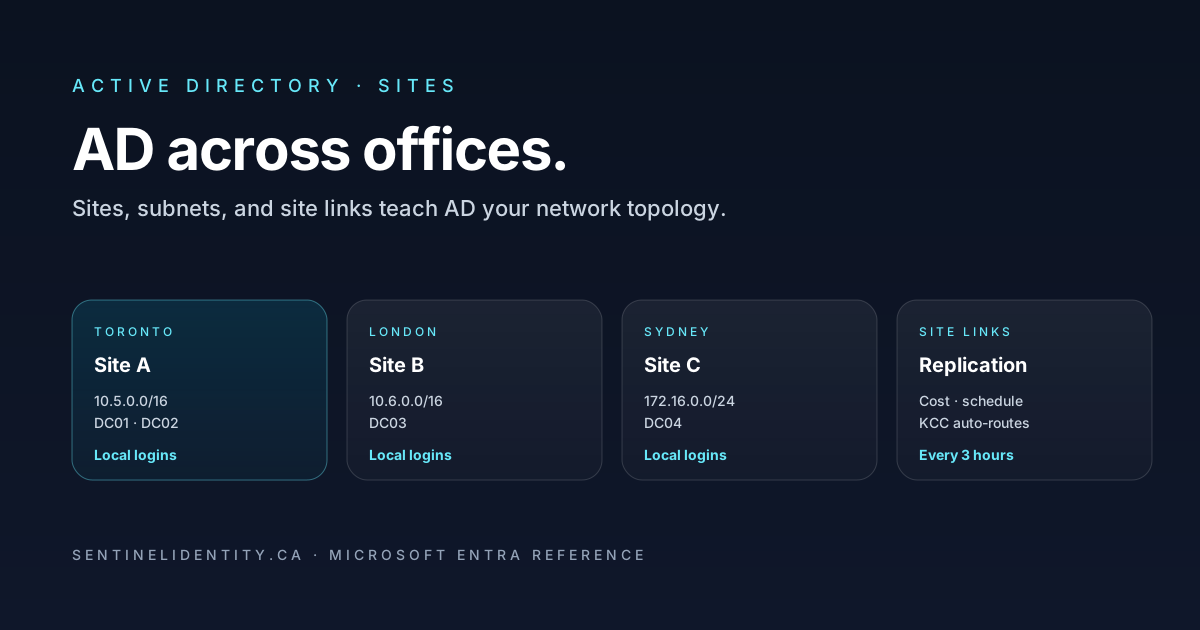
Today we're talking about Active Directory Sites. If you've read the What is Active Directory? beginner's guide and you're comfortable with the basics — users, groups, Domain Controllers — then Sites is the next natural thing to understand. It's what makes AD usable when your company grows beyond one office.
Ready? Let's do this.
The problem AD Sites exists to solve
Picture this: you work for a company with three offices.
- Toronto (300 people)
- London (150 people)
- Sydney (80 people)
You've deployed Active Directory. You have three Domain Controllers — one in each office — all part of the same domain (contoso.com). Everything is technically working. Users log in. Files open. Life is good.
Now imagine a user in London opens Outlook in the morning. Their computer needs to check in with Active Directory. Which Domain Controller does it talk to?
Left to its own devices, the client might pick any DC. The Toronto one. The Sydney one. Whichever it happens to find first in DNS. And that's a problem, because:
- The Sydney DC is 16,000 km away. Every login request has to travel to Australia and back. That's slow. Painfully slow.
- The link between offices is expensive. You don't want every user's traffic bouncing across continents when there's a perfectly good DC in the same building.
- If London's internet goes out, the local DC is useless because clients don't know to prefer it.
This is what Active Directory Sites is for. It teaches AD about your physical network topology, so clients automatically talk to the closest DC.
Let me repeat that because it's the whole idea: Sites is how AD learns which DCs are near which users, so it can send them to the right one.
Now let's break down how it actually does that.
The building blocks
There are four pieces. If you get these, you get AD Sites.
Sites
A site in AD is basically "a place where you have DCs and users who share a fast network connection." Usually that maps to a physical office. Toronto is a site. London is a site. Sydney is a site.
You create sites in the AD tool called Active Directory Sites and Services. Give the site a name. That's it. The site is now just a container waiting for you to tell AD what belongs to it.
Subnets
Users' computers don't know they're in Toronto. Networks don't have flags on them. So how does AD figure out which site a computer belongs to?
Subnets. Every AD site has a list of IP subnets associated with it. When a computer at IP 10.5.20.42 boots up and asks a DC where it is, the DC looks up the subnet, sees 10.5.20.0/24 is registered to the "Toronto" site, and tells the client "you're in Toronto — here's the Toronto DC."
So the mapping goes:
- Subnet 10.5.20.0/24 → belongs to Toronto site
- Subnet 10.6.0.0/16 → belongs to London site
- Subnet 172.16.0.0/24 → belongs to Sydney site
Add a new office? Create a new site, add its subnet(s) to that site. Clients in that subnet start talking to their local DC automatically.
This is the whole game. Sites + subnets is how AD does location-awareness.
Site links
Sites are physical locations. But they need to talk to each other — Domain Controllers still need to share data (new users, password changes, group memberships) across sites so everyone has the same view of the directory.
The connection between sites is called a site link. Site links have three properties you might care about:
- Cost — a number that tells AD how "expensive" a link is. Lower cost = preferred. If you have a fast MPLS link between Toronto and London (cost 100) and a slow VPN backup (cost 500), AD prefers the MPLS.
- Schedule — when the site link is available. Some organizations only allow replication over expensive WAN links during off-hours. You can say "Toronto ↔ Sydney only replicates between 10 PM and 6 AM."
- Interval — how often replication happens. Default is every 180 minutes (3 hours) for inter-site. Some setups need it faster; some slower.
KCC — the invisible auto-router
You don't manually configure "DC01 in Toronto replicates with DC02 in London." That would be insane at scale. Instead, AD has a background service called the Knowledge Consistency Checker (KCC) running on every DC that automatically builds an efficient replication topology based on your sites and site links.
The KCC is basically saying "given all these sites, and all these site links with their costs, what's the smartest way to move data around?" It figures out the answer, sets it up, and keeps re-evaluating as things change.
You don't need to babysit the KCC. Just tell it about your sites and subnets correctly, and it does the rest.
How a client actually finds a DC
Let me walk you through what happens when a laptop in London boots up in the morning. This is where all the pieces come together and it clicks.
- Laptop boots. Windows knows it's a domain member (
contoso.com). - Laptop asks DNS: "hey, where are the domain controllers for contoso.com?" DNS returns a list of all DCs in the domain — Toronto, London, Sydney.
- This is where sites matter. Laptop contacts the first DC in the list (say, Toronto). Toronto DC looks at the laptop's IP address (
10.6.42.15). Toronto DC checks its site database: which site owns subnet10.6.0.0/16? Answer: London. - Toronto DC essentially says "hey, you're in London — here's the list of DCs in your site, use one of them instead."
- Laptop switches over to the London DC. Site-aware discovery can favour an appropriate controller. This does not reconfigure the client's DNS resolvers or move every existing application connection.
That's the whole point of Sites. Without them, the laptop would just keep talking to whichever DC it hit first. With them, the laptop finds its local DC and stays there.
If London's DC becomes unavailable, the laptop falls back to another DC — but AD will prefer sites with cheap site links to London. Next-closest-site behaviour depends on discovery configuration and available services; a site definition alone does not guarantee a particular fallback controller.
When you'd actually think about sites
Even a single-site deployment should review subnet mapping and discovery. A default site name does not establish that every client subnet is correctly represented.
You start caring about sites when:
- You add a second office. Now you need to tell AD that the new office is a separate site.
- You have remote users on a slow VPN. Without site definitions, they might authenticate against a DC on the other side of the world.
- You have a DR (disaster recovery) site with warm-standby DCs. You want them in their own site so they don't get promoted to primary just because a client can reach them.
- Your replication is misbehaving — usually a symptom that sites are wrong or subnets are missing.
What breaks in real deployments
Six things go wrong in AD Sites deployments repeatedly. Knowing them saves hours of troubleshooting.
"A user's computer keeps authenticating against a DC across the country." Their subnet isn't registered to their site. Check Sites and Services → Subnets and confirm the subnet exists and is mapped to the right site.
"Every hour I get a warning that a subnet isn't defined in Sites and Services." Some client is booting up with an IP that doesn't match any registered subnet. Sometimes it's a VPN user with a weird IP; sometimes it's a new office you forgot to configure. Look in the Netlogon logs on any DC to see which subnet is unrecognized.
"Replication is stuck between two sites." Usually the site link between them is broken — could be a network issue, a firewall blocking port 135/445/389, or a misconfigured site link cost that's causing the KCC to route strangely. Run repadmin /replsummary to see the current state.
"Users in the new office are slow to log in for the first time." Windows caches discovery information. Record the observed site and controller rather than promising a fixed refresh time. nltest /dsgetdc:contoso.com /force requests fresh discovery; it does not move every application session.
"A DC in a small remote site is getting hammered." Inspect actual load, client subnet mapping, resolver configuration, and the service being requested. There is no universal "site local" switch that configures DNS and DFS together.
"I deleted a site but the KCC still references it." Deleted sites can leave orphan objects. Force a KCC recalculation with repadmin /kcc on all remaining DCs; usually clears itself within a replication cycle.
The FAQ
Do I need one DC per site? Not required, but strongly recommended for any site with more than a handful of users. Without a local DC, all authentication crosses the WAN.
What's the difference between a "site" and a "domain"? Domains are about the directory structure — what users and groups exist, who has permissions where. Sites are about the physical network — where the DCs and clients are geographically. Two different concepts, same directory.
Can one site span multiple physical offices? Yes, if they share a fast LAN or high-speed WAN with low latency (typically <10 ms). Some companies have "east coast" sites containing multiple regional offices connected via MPLS.
What if my company has thousands of tiny sites (like retail stores)? That's called the "hub and spoke" topology. You have one or two hub sites with full DCs, and hundreds of spoke sites with either lightweight Read-Only Domain Controllers (RODCs) or no DCs at all. Site links connect all the spokes to the hubs.
Does Entra ID have sites? No. Entra ID is a global cloud service — Microsoft handles the geographic routing for you. Users authenticate against the nearest Microsoft data centre automatically. Sites are only relevant to on-premises Active Directory.
How often does site data replicate? Replication timing depends on topology, schedules, notification behaviour, and health. Check the actual configuration and replication results; do not treat a nominal interval as a convergence guarantee.
Can I run "sites and services" without ever creating any additional sites? Yes. Small single-office deployments just leave the default site and it works fine. Sites and Services becomes important when you have multiple physical locations.
Try it in your lab
The best way to actually understand sites is to build one. If you followed the minimum-viable Windows Server home lab guide, you already have a working AD environment.
Try this exercise:
- In your lab, create a second site (e.g., "Site-B") using
Active Directory Sites and Services. - Move your existing DC into "Site-A" (rename the default site).
- Add a subnet like
192.168.99.0/24and assign it to Site-B. - Create a second VM with an IP in
192.168.99.0/24and join it to the domain. - Watch: the new VM will authenticate against Site-B's DCs (there are none, so it'll fall back — which teaches you what happens when a site has no DC).
- Add a second DC in Site-B. Now the new client uses that DC. Success.
Doing this once teaches you sites permanently. Reading about it does not.
Where to go next
Now that you understand Sites, the natural next topics are:
- DNS in Active Directory — because DC discovery relies entirely on DNS, and if DNS is misconfigured Sites won't help you.
- Read-Only Domain Controllers (RODCs) — the specialised DCs designed for remote sites where you can't guarantee physical security.
- Group Policy — because you might want to apply different policies to users in different sites (rare, but possible).
If you're studying for AZ-800 or MS-102, the Sites topic shows up in both exams. Building the two-site lab above is the single best exam prep for the AD topology sections.
Primary references
About the author
MU.AMicrosoft 365 / Entra Engineer
MU.A is the editorial byline for Sentinel Identity, covering Microsoft Entra, Microsoft 365, and identity administration. Send corrections or questions through the contact page.
Feedback
Was this article helpful?
Anonymous — no account or comment required.
Related reading
Provision Microsoft Entra Users to Active Directory
Provision Microsoft Entra users to Active Directory with Cloud Sync. Plan scope, matching, passwordless Kerberos, validation, rollback, and monitoring safely.
HiBob to Active Directory Provisioning with Microsoft Entra
Deploy HiBob to Active Directory provisioning through Microsoft Entra: validate permissions, mappings, approvals, agent health, monitoring, and rollback.
Microsoft Entra Domain Services SAM Account Name Sync
Pilot Microsoft Entra Domain Services SAM account name sync safely: verify Active Directory source names, test legacy authentication, and monitor convergence.