
From the notebook
Outlook Shared Mailbox Auto-Mapping Not Working: Causes, Diagnostics, and Fixes
A focused guide to shared-mailbox auto-mapping: how Autodiscover exposes additional mailboxes, why group-based permissions and AutoMapping:$false prevent discovery, and how to repair the client state without unnecessary OST deletion.
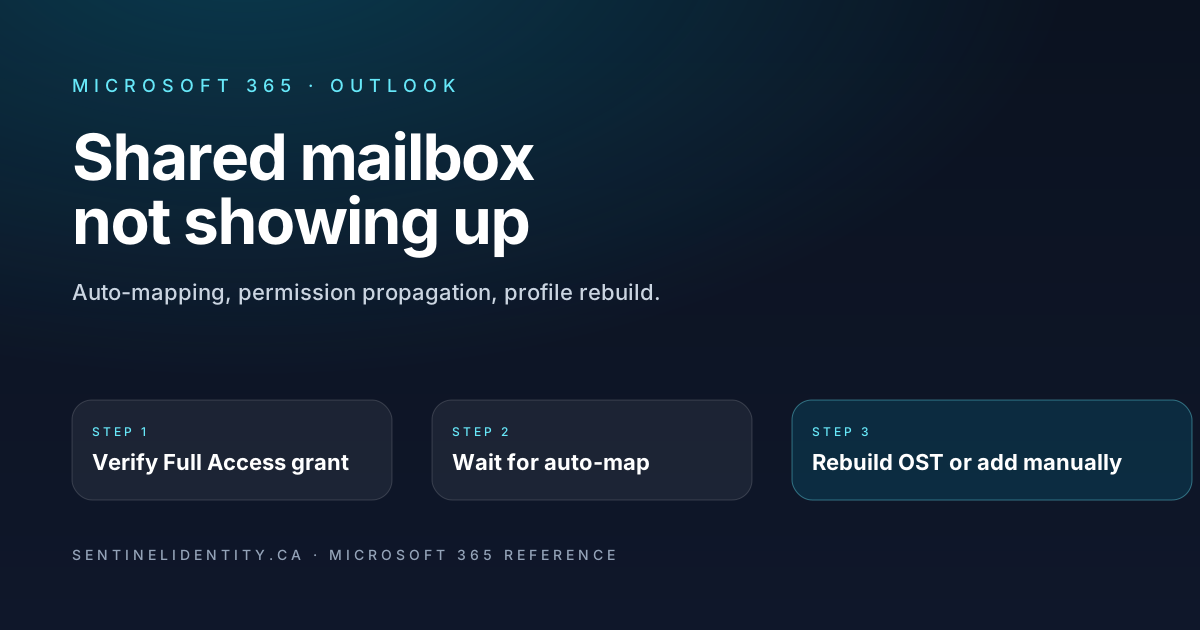
A manager opens a ticket. "I got added to the shared mailbox three days ago. Other people on the team can see it. I can't. Restarting Outlook doesn't help. A new profile didn't help. Please advise." You've seen this ticket. You've probably closed it with some variant of "give it time, then rebuild the profile," which works often enough to feel right but doesn't address why it happened, which is why the same users keep filing it.
The reason most help-desk articles get this one half-right is that the underlying mechanism (auto-mapping) isn't a single thing. It's a behaviour that depends on how the permission was granted, whether a specific PowerShell flag was set when it was granted, what's currently in the user's local profile cache, and a handful of edge cases involving converted mailboxes and group-based access. The standard checklist hits one or two of those and misses the others. Once a tenant has more than a few shared mailboxes, the help desk burns hours on a fix that the original grant could have prevented.
What follows is the diagnostic I run in this order, the actual mechanics of what auto-mapping does, the edge cases the standard checklist misses, and a weekly PowerShell report that turns this from a recurring ticket into a documented onboarding step. Microsoft's references for the underlying behaviour are shared mailbox permissions and the auto-mapping section.
What auto-mapping actually does
When you grant a user Full Access to a shared mailbox via the admin centre or Add-MailboxPermission, Exchange Online writes the assignee's identity into a property on the shared mailbox called msExchDelegateListLink. The next time Outlook starts and walks its Autodiscover flow, it sees that property, recognises that this user has an additional mailbox to render, and adds it to the navigation pane on its own. No user action required. Happy path.
Where the happy path stops working has a small, finite set of causes:
| Failure mode | What's actually wrong |
|---|---|
| User never restarted Outlook | Auto-mapping only re-evaluates at profile boot. Someone who keeps Outlook open for days never sees the new mailbox. |
Permission was granted with AutoMapping:$false |
The flag suppresses the property write. Auto-discovery has nothing to discover. |
| User already added the mailbox manually | Outlook spots the duplicate and silently does nothing. |
| Mailbox is hidden from the GAL | Autodiscover doesn't always resolve it cleanly on older client versions. |
| Profile cache is stale | Cached Exchange Mode holds the mailbox list in .ost and registry keys across restarts. |
| Permission was granted via group membership | Auto-mapping is per-user. Group-granted permissions don't trigger the property write at all. |
The last one is by far the most common cause the standard checklist misses. If the security team has built a clean RBAC model where "Sales team → can access Sales shared mailbox," auto-mapping doesn't apply, and every member has to add the mailbox manually. That's documented behaviour, not a bug, but it's not the answer people are expecting.
The five-step diagnostic
The order matters because each step rules out a specific cause and the cheap checks come first.
Step one is confirming the permission grant actually exists. Standard Get-MailboxPermission, looking specifically for the user, looking specifically for FullAccess:
Connect-ExchangeOnline
Get-MailboxPermission -Identity "sales@contoso.com" |
    Where-Object { $_.User -like "*alice@contoso.com*" }
You want AccessRights : FullAccess, IsInherited : False, and Deny : False. If Deny is true, someone explicitly denied access — deny wins, find the grant and remove it. If the user isn't in the list at all, the grant was never applied directly. Check whether the user is a member of a group that was granted access — that's the next sub-question.
Step two is the auto-mapping flag itself. Once a permission is granted, you can't toggle auto-mapping retroactively. The fix is to remove and re-grant with the flag set:
Remove-MailboxPermission -Identity "sales@contoso.com" `
    -User "alice@contoso.com" -AccessRights FullAccess -Confirm:$false

Add-MailboxPermission -Identity "sales@contoso.com" `
    -User "alice@contoso.com" -AccessRights FullAccess -AutoMapping:$true
If the original grant was made with AutoMapping:$false, this single sequence closes a surprising fraction of these tickets.
Step three is replication. EXO doesn't propagate permission changes instantly. Fifteen to sixty minutes is normal, longer on a busy tenant during business hours. If the grant happened within the last hour, the cause might just be timing. You can confirm replication is done from the user's machine via Test E-mail AutoConfiguration (hold Ctrl while right-clicking the Outlook tray icon), which surfaces the Autodiscover XML response — and if the shared mailbox shows up in the XML but not in Outlook's pane, you've isolated the issue to client cache rather than server replication.
Step four is the profile rebuild, which is where the standard help-desk article starts. The reason this works when it does: Outlook caches the mailbox list both in the .ost file and in profile registry keys. A profile rebuild forces re-creation of both. The right scope: close Outlook, Control Panel → Mail → Show Profiles, add a new profile (don't edit the existing one — that often reuses the cache), set it as default, open Outlook and sign in. Wait five to fifteen minutes for the full mailbox list to populate, especially for users with many additional mailboxes. Once you've confirmed it works, the old profile can be removed.
Resist the temptation to delete the user's existing .ost file as part of this. That forces a re-download of their entire primary mailbox, which can be gigabytes for no benefit. Profile rebuild is the right scope; OST deletion is overkill.
Step five is the manual add as a fallback. If the permission is correct, replicated, the profile is fresh, and the mailbox still won't appear, add it manually:
- File → Account Settings → Account Settings → Email tab → Change → More Settings → Advanced → Add.
- Enter the shared mailbox's primary SMTP.
- OK, Next.
The mailbox appears below the user's primary in the navigation pane. This bypasses auto-mapping entirely, which makes it the right answer for the group-membership scenario and the right escape hatch for anything else.
The trap nobody mentions
A specific edge case worth knowing about: a mailbox originally created as a user mailbox and later converted to a shared mailbox. The conversion sometimes leaves residual flags that confuse Outlook's Autodiscover behaviour. The signature is that the mailbox shows up for everyone except the users who had access during the user-mailbox era.
Get-Mailbox -Identity "sales@contoso.com" |
    Select-Object Identity, RecipientTypeDetails, WhenChanged, WhenCreated
If RecipientTypeDetails shows SharedMailbox but the affected users still have the older mapping cached, the fix is either to add the mailbox manually (step five) or to remove and re-grant their permission to refresh the auto-mapping state.
A weekly proactive query
The most useful thing you can do once the diagnostic is in place is generate a weekly report of who has Full Access on which shared mailboxes, so the onboarding step for group-based access becomes documented operations rather than reactive ticket-closing:
Connect-ExchangeOnline
$sharedMailboxes = Get-Mailbox -RecipientTypeDetails SharedMailbox -ResultSize Unlimited

$report = foreach ($mbx in $sharedMailboxes) {
    $perms = Get-MailboxPermission -Identity $mbx.Identity |
        Where-Object {
            $_.AccessRights -contains "FullAccess" -and
            $_.IsInherited -eq $false -and
            $_.User -notlike "NT AUTHORITY*" -and
            $_.User -notlike "S-1-*"
        }
    foreach ($p in $perms) {
        [pscustomobject]@{
            Mailbox      = $mbx.PrimarySmtpAddress
            User         = $p.User
            AccessRights = ($p.AccessRights -join ",")
            Deny         = $p.Deny
        }
    }
}

$report | Export-Csv shared-mailbox-permissions.csv -NoTypeInformation
Cross-reference the result against the msExchDelegateListLink property on each mailbox to identify users granted via group membership and therefore not auto-mapped. Feed that list into the user-onboarding email so they know to expect the manual step before they file a ticket.
Things people ask
How long does auto-mapping actually take to fire? Fifteen to sixty minutes for EXO to propagate, plus one Outlook restart. A user who keeps Outlook open through the day won't see the new mailbox until they next restart, no matter how long ago the grant was made.
Does the user also need Send As to use the shared mailbox? Full Access lets them read. Send As (a separate grant) lets them send mail with the shared address as From. They're independent. A user with only Full Access can read the mailbox but their replies go from their own address.
Does OWA auto-map shared mailboxes? No. OWA doesn't implement auto-mapping at all. In OWA the user adds shared mailboxes manually via the navigation pane → right-click Folders → Add shared folder.
What about Outlook for Mac? Outlook for Mac supports auto-mapping but the timing and cache behaviour differ. The reliable sequence is: confirm permission, wait an hour, restart Outlook, and if still not visible, close and reopen the Mac account in System Settings → Internet Accounts.
Why does remove-and-re-grant with AutoMapping:$true sometimes still not work? The msExchDelegateListLink property write happens, but Outlook's local Autodiscover cache may still hold the stale view. Force a refresh by deleting %LocalAppData%\Microsoft\Outlook\AutoDiscover.xml and restarting Outlook.
Can I prepopulate shared mailboxes via Group Policy or Intune? Yes — Outlook profile prepopulation via the Office Customization Tool and Group Policy ADMX templates supports configuring additional mailboxes at profile creation. This is the right answer for tenants where hundreds of users need access to the same shared mailboxes via group-granted access. It moves the problem from "user must add manually" to "Outlook is provisioned with the mailbox list at first launch."
Where to read further
About the author
MU.AMicrosoft 365 / Entra Engineer
MU.A is the editorial byline for Sentinel Identity, covering Microsoft Entra, Microsoft 365, and identity administration. Send corrections or questions through the contact page.
Feedback
Was this article helpful?
Anonymous — no account or comment required.
Related reading
Azure RBAC Access Packages in Microsoft Entra: Admin Guide
Govern Azure RBAC access with Microsoft Entra access packages: scope roles safely, choose active or eligible access, pilot approvals, and verify removal.
Manage Microsoft Entra Recommendations with Microsoft Graph
Manage Microsoft Entra recommendations with Graph beta: inventory resources, add workflow tags, choose accurate states, and preserve review evidence.
Prevent Nested Groups in Microsoft Entra: Admin Guide
Prevent nested groups in Microsoft Entra with the new disableNesting preview control. Inventory dependencies, pilot safely, monitor changes, and roll back.