
From the notebook
Shared Mailbox Not Showing Up in Outlook? Here's How To Walk the Five Things That Might Be Wrong
The shared mailbox isn't there. Or it's there but Send As fails. Or sent items keep landing in the user's own folder. Same complaints, different layers. Here's the diagnostic order, the PowerShell that fixes the permission side, and the Outlook cache habit that resolves most of the rest.
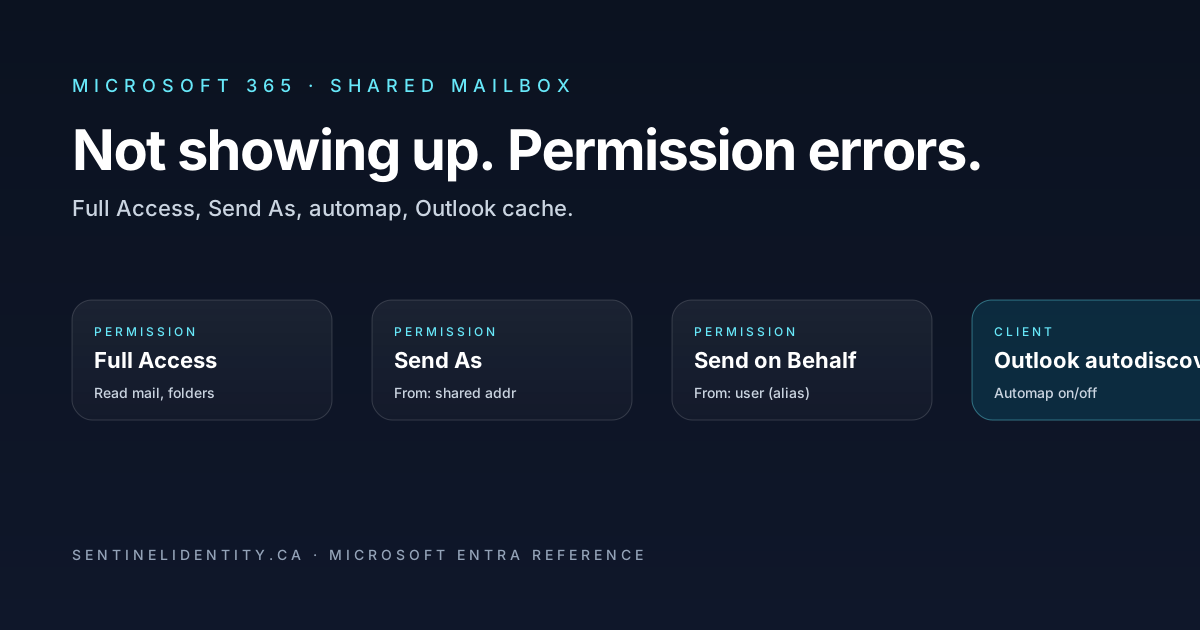
If you support a Microsoft 365 tenant of any size you've already lost a few hours of your career to shared mailbox tickets. The mailbox doesn't appear in someone's Outlook. They can read it but Send As silently fails. The message goes out fine but lands in their personal Sent Items instead of the shared mailbox's, which means the next person to reply has no idea what was already said. The reincarnations are endless and they always feel slightly different.
The honest answer is that there aren't many distinct shared-mailbox problems. There are maybe five, and they live across three places: the permission ACLs in Exchange Online, the autodiscover and automap subsystem that decides what appears in Outlook, and the Outlook client's local cache. Each layer has its own state, and the layers refresh at different speeds, which is why "I granted permission five minutes ago, why doesn't it show up" feels like a bug and isn't. We'll walk the layers in the order I check them when a real ticket lands.
The three permissions and why people keep confusing them
Full Access, Send As, and Send on Behalf sound interchangeable in casual conversation and aren't. The differences matter because they determine what the recipient sees, where sent items land, and whether the mailbox even shows up in Outlook.
| Permission | What it grants | What recipients see | Where Sent Items lands |
|---|---|---|---|
| Full Access | Read mail, manage folders, treat the mailbox as one of your own | (not relevant — read/manage only) | (not relevant) |
| Send As | Send with the shared mailbox as the From address | shared@contoso.com |
The user's mailbox, unless you change a setting |
| Send on Behalf | Send with the user as From, "on behalf of" the shared mailbox | user@contoso.com on behalf of shared@contoso.com |
The user's mailbox |
For most public-facing shared mailboxes — info@, sales@, support@ — Send As is what you want. Recipients see the shared address, full stop. Send on Behalf is occasionally useful when there's a real reason to disclose who actually composed the message, but in practice it tends to make outbound mail look unprofessional and confuse the recipient.
The trap I want to call out explicitly: Send As without Full Access is a real configuration. You can grant a user Send As permission and they'll be able to send from the shared address using the From dropdown, but the mailbox itself won't appear in their folder list. If someone files a ticket saying "I have Send As but the mailbox isn't visible," that's working as designed — they need Full Access for the visual.
The order I check things
Pull up an Exchange Online PowerShell session before anything else:
Connect-ExchangeOnline -UserPrincipalName admin@contoso.com -ShowBanner:$falseNow walk through the layers.
Layer one is the permission state. Three commands, one for each surface. None of them is optional, and if you skip one you'll occasionally diagnose a Send As issue as if it were a Full Access issue and waste everyone's time.
$shared = "info@contoso.com"

# Full Access
Get-MailboxPermission -Identity $shared |
    Where-Object { $_.User -notlike "NT AUTHORITY*" } |
    Select-Object User, AccessRights, IsInherited

# Send As
Get-RecipientPermission -Identity $shared |
    Where-Object { $_.Trustee -notlike "NT AUTHORITY*" } |
    Select-Object Trustee, AccessRights

# Send on Behalf
(Get-Mailbox -Identity $shared).GrantSendOnBehalfTo
If the user reporting the problem isn't in the list returned by the relevant command, the permission they think they have isn't there. Grant the missing piece. The cmdlets are predictably named — Add-MailboxPermission for Full Access, Add-RecipientPermission for Send As, and Set-Mailbox -GrantSendOnBehalfTo @{Add="..."} for Send on Behalf. The complete forms:
Add-MailboxPermission -Identity $shared -User alice@contoso.com `
    -AccessRights FullAccess -InheritanceType All -AutoMapping $true

Add-RecipientPermission -Identity $shared -Trustee alice@contoso.com `
    -AccessRights SendAs -Confirm:$false

Set-Mailbox -Identity $shared -GrantSendOnBehalfTo @{Add="alice@contoso.com"}
Layer two is automapping, which is the feature that quietly puts the shared mailbox in the user's Outlook folder list after Full Access lands. It's on by default. When a user reports "I have Full Access but the mailbox isn't there," check whether automapping was turned off on the grant. If it was, either re-grant with -AutoMapping $true or have the user add the mailbox manually in Outlook (File → Account Settings → Add Mailbox).
There's a legitimate reason to keep automapping off, by the way. If a user is in a group that grants Full Access to twenty different shared mailboxes, having all twenty appear in their Outlook is loud and annoying. In that situation you want them to manually add only the ones they actually use. Outside that scenario, leave automapping on.
Layer three is sent-items routing. This catches the "the user sent a reply from the shared mailbox but the sent message is in their personal Sent Items" complaint, which is one of the most-asked questions on every M365 forum because the default behaviour is genuinely wrong for shared mailboxes. The fix is a per-mailbox setting:
Set-Mailbox -Identity $shared `
    -MessageCopyForSentAsEnabled $true `
    -MessageCopyForSendOnBehalfEnabled $true
Set both even if you're only using one of the two send permissions. It does no harm and saves a future ticket the day someone adds the other permission. I recommend including this command in whatever script you use to provision new shared mailboxes — the default is wrong often enough that it's not worth remembering case by case.
Layer four is the Outlook client cache, and this is where most of the "I have access but Outlook doesn't show it" tickets actually live. The permission grant in Exchange Online is correct, but the Outlook client refreshes its mailbox-discovery information on a schedule rather than instantly. Typical lag is one to two hours. If the user can't wait, the sequence is: close Outlook completely (check Task Manager that it's gone), reopen, and in most cases the mailbox now appears. If not, try outlook.exe /resetnavpane from a command prompt, or add the mailbox manually from Account Settings. The profile rebuild (Control Panel → Mail → Show Profiles → Add) is a last resort because it's high friction for the user — you only reach for it after the other steps have failed.
For New Outlook (the web-codebase rewrite), the cache layer is mostly moot — it pulls from the server on each connection. Close and reopen and you're usually fine.
Layer five is autodiscover, which I include for completeness even though I see it as the root cause maybe once a quarter. If the user's Outlook can't reach autodiscover-s.outlook.com because of network filtering or a misconfigured custom autodiscover record, the shared mailbox can't be discovered at all. Symptoms include the mailbox missing across multiple devices for one specific user, while other users have no problem. Test from the user's machine:
Test-NetConnection -ComputerName "autodiscover-s.outlook.com" -Port 443
nslookup autodiscover.contoso.com
If the DNS record is wrong, fix it. If the network can't reach the autodiscover endpoint, the network team owns the next step.
A diagnostic script worth handing to the help desk
Same logic as above, packaged so the help desk can paste in a UPN and a shared mailbox and get an answer:
<#
.SYNOPSIS
  Diagnoses shared mailbox access for a user.
.PARAMETER User
  The user reporting the problem (UPN).
.PARAMETER SharedMailbox
  The shared mailbox they're trying to access.
#>
[CmdletBinding()]
param(
    [Parameter(Mandatory)] [string] $User,
    [Parameter(Mandatory)] [string] $SharedMailbox
)

try { Get-EXOMailbox -Identity $SharedMailbox -ErrorAction Stop | Out-Null }
catch {
    Write-Host "Connect to Exchange Online first: Connect-ExchangeOnline" -ForegroundColor Red
    return
}

Write-Host "`n=== Diagnostic: $User on $SharedMailbox ===" -ForegroundColor Cyan

$fullAccess = Get-MailboxPermission -Identity $SharedMailbox |
    Where-Object { $_.User -eq $User }
if ($fullAccess) {
    Write-Host "[Full Access]    YES" -ForegroundColor Green
} else {
    Write-Host "[Full Access]    NO  -> grant with:" -ForegroundColor Red
    Write-Host "  Add-MailboxPermission -Identity $SharedMailbox -User $User -AccessRights FullAccess -AutoMapping `$true"
}

$sendAs = Get-RecipientPermission -Identity $SharedMailbox |
    Where-Object { $_.Trustee -eq $User }
if ($sendAs) {
    Write-Host "[Send As]        YES" -ForegroundColor Green
} else {
    Write-Host "[Send As]        NO  -> grant with:" -ForegroundColor Yellow
    Write-Host "  Add-RecipientPermission -Identity $SharedMailbox -Trustee $User -AccessRights SendAs -Confirm:`$false"
}

$mbx = Get-Mailbox -Identity $SharedMailbox
if ($mbx.MessageCopyForSentAsEnabled -and $mbx.MessageCopyForSendOnBehalfEnabled) {
    Write-Host "[Sent Items]     Routes to shared mailbox" -ForegroundColor Green
} else {
    Write-Host "[Sent Items]     Not routed -> fix with:" -ForegroundColor Yellow
    Write-Host "  Set-Mailbox -Identity $SharedMailbox -MessageCopyForSentAsEnabled `$true -MessageCopyForSendOnBehalfEnabled `$true"
}

Write-Host "`nIf permissions are all green and the mailbox still isn't visible," -ForegroundColor Cyan
Write-Host "have the user close Outlook completely and reopen. Allow up to 2 hours" -ForegroundColor Cyan
Write-Host "for automapping to propagate." -ForegroundColor Cyan
Save it as Test-SharedMailbox.ps1 and tell the help desk to run it on any ticket with "shared mailbox" in the title.
Licensing and a few lifecycle traps
Shared mailboxes under 50 GB don't need a license. Above 50 GB, they need an Exchange Online Plan 2 license, which catches people off guard when a shared mailbox used for retention quietly grows past the limit. The same Plan 2 license is required for any shared mailbox under litigation hold or with an archive enabled, regardless of size.
Disabled user accounts whose mailboxes were converted to shared mailboxes retain the permissions that were on them before the conversion. If you're doing a clean-up sweep — say, after a project ends and the personal accounts get disabled — explicitly remove the old user permissions or the next admin to audit will see ghosts.
Microsoft 365 group membership is one place shared mailboxes can't live. They can't join a Microsoft 365 group directly. Some scenarios get worked around with mail-flow rules, but the direct membership path doesn't exist.
Questions I get
Why does my message show "on behalf of" instead of just the shared address? The user has Send on Behalf but not Send As. Recipients see exactly what's happening. Grant Send As (and revoke Send on Behalf if you only want the cleaner header), then have the user restart Outlook.
The shared mailbox keeps disappearing from Outlook overnight. Almost always a group whose membership churned. Full Access was granted via group, the user left the group at some point, automap kicked in and removed the auto-added mailbox. Check whether Full Access on this user is direct or inherited from a group, and decide which is the right model.
OWA can see the mailbox but Outlook desktop can't. OWA queries the server live. Outlook desktop uses the local cache that refreshes on a schedule. If permissions changed recently, OWA reflects the change immediately and Outlook desktop catches up within an hour or two.
How do I stop people signing into the shared mailbox directly? Shared mailboxes have a hidden user account with a randomised password. By default that account has BlockCredential set to true, which blocks sign-in. Verify with Get-User -Identity shared@contoso.com | Format-List BlockCredential. If it's false (rare, but happens), set it to true with Set-User -Identity shared@contoso.com -BlockCredential $true. Users get to the mailbox through their own credentials, never the mailbox's.
Outlook says "Cannot expand the folder. The set of folders cannot be opened." Permission was revoked, mailbox was deleted, or the mailbox got renamed and Outlook is holding a stale reference. Re-check Get-MailboxPermission, re-grant if needed, and have the user restart.
Where to read further
- About shared mailboxes — Microsoft Learn
- Open and use a shared mailbox in Outlook — Microsoft Learn
- Shared mailboxes in Exchange Online — Microsoft Learn
- Remove automapping for a shared mailbox — Microsoft Learn
Add-MailboxPermission— Microsoft LearnAdd-RecipientPermission— Microsoft LearnSet-Mailboxreference — Microsoft Learn
About the author
MU.AMicrosoft 365 / Entra Engineer
MU.A is the editorial byline for Sentinel Identity, covering Microsoft Entra, Microsoft 365, and identity administration. Send corrections or questions through the contact page.
Feedback
Was this article helpful?
Anonymous — no account or comment required.
Related reading
Azure RBAC Access Packages in Microsoft Entra: Admin Guide
Govern Azure RBAC access with Microsoft Entra access packages: scope roles safely, choose active or eligible access, pilot approvals, and verify removal.
Manage Microsoft Entra Recommendations with Microsoft Graph
Manage Microsoft Entra recommendations with Graph beta: inventory resources, add workflow tags, choose accurate states, and preserve review evidence.
Prevent Nested Groups in Microsoft Entra: Admin Guide
Prevent nested groups in Microsoft Entra with the new disableNesting preview control. Inventory dependencies, pilot safely, monitor changes, and roll back.